> ## Documentation Index
> Fetch the complete documentation index at: https://developer.voyado.com/llms.txt
> Use this file to discover all available pages before exploring further.
# Bulk contacts API
The bulk contacts endpoints are used for batch updating of contact data directly over the Engage API.
## Bulk reading of contacts
You can get an array of contact IDs of all contacts that have been changed (created, updated or deleted) within a specified time window using this endpoint:
```http theme={null}
GET /api/v3/contacts/changes
```
This endpoint takes three parameters:
Created, Updated, Deleted
The start date and time of the search window.
The end date and time of the search window.
If `toDate` is left out of the query, the current date and time will be used.
For example, assuming the date and time now is "2023-05-04 11:20:00.000" and you want the IDs of all contacts created over the last 15 minutes, the request would be:
```http theme={null}
GET /api/v3/contacts/changes?changeType=Created&fromDate=2023-05-04%2011%3A05%3A00.000
```
### Response
The response will look like this:
```json All contacts changed within the given window theme={null}
[
"b16fd8f3-d0f5-aaaa-aa60-b00300f9aaaa",
"febb6003-863d-bbbb-a4d0-b0030119bbbb"
]
```
Or, if there are no contacts matching your search, an empty array:
```json theme={null}
[]
```
The number of contactIds that can be returned in the response is currently capped at 250 000. If your query creates a response that exceeds this limit, it will instead return a Bad Request status code.
## Bulk writing of contacts
To create multiple contacts at once, the contacts bulk API endpoint can be used:
```http theme={null}
POST /api/v3/contacts/bulk
```
You can also use this same endpoint to update multiple existing contacts at once:
```http theme={null}
PATCH /api/v3/contacts/bulk
```
The maximum number of contacts allowed in one bulk request is 4000. The rate limit for this endpoint is the same as for other endpoints.
If you are planning to do a large migration of contacts, and you have an XML export activated, first get in touch with your Voyado team.
### Query string parameters
There are two optional parameters that can be added to the query string:
This prevents your bulk contact request from triggering the automatic BI and XML contact exports. The default value for this attribute is "false" so you only need to include this if you want it to be true. You can read more about this parameter here.
This allows you to specify the contact type of the contacts you are creating (or updating). If not specified, your default contact type configured in Engage will be used.
The `avoidTriggeringExport` parameter only has an effect when doing a bulk update (that is, when using the PATCH operation).
A request using these parameters (a bulk update in this case) would look like this:
```http theme={null}
PATCH /api/v3/contacts/bulk?avoidTriggeringExport=true&contactType=Contact
```
In this example, all the contacts updated will be of `contactType` "Contact".
### Creation payload
The data needed to bulk create contacts has the same requirements as when creating an individual contact using the `contacts` endpoint. This means, at a bare minimum, that the key attribute must be included in the payload (in this case, it's `email`).
Here is a basic bulk creation payload:
```json Basic bulk contact creation payload theme={null}
[
{
"firstName": "Anna",
"lastName": "Arkberg",
"city": "Examplecity",
"email": "anna@example.com",
"registrationDate": "2022-01-01T00:00:00+0100"
},
{
"firstName": "Berit",
"lastName": "Berlucci",
"city": "Examplecity",
"email": "berit@example.com",
"registrationDate": "2022-01-01T00:00:00+0100"
}
]
```
If you have specified a `contactType` in the query string then all these new contacts will be created with that type. If it's not specified, the new contacts will all be created using whatever default `contactType` you have configured in Engage.
### Consents and preferences
There is an important difference between creating contacts individually with the `contacts` endpoint and creating them in bulk using the bulk endpoint discussed here.
In the bulk API case, the contact data is sent "flat", as can be seen here for these two contacts:
```json Flat JSON structure for bulk contact creation theme={null}
[
{
"firstName": "Anna",
"lastName": "Arkberg",
"city": "Examplecity",
"email": "anna@example.com",
"acceptsEmail":true,
"acceptsPostal":false,
"acceptsSms":false,
"memberConsent":true
},
{
"firstName": "Berit",
"lastName": "Berlucci",
"city": "Examplecity",
"email": "berit@example.com",
"acceptsEmail":true,
"acceptsPostal":false,
"acceptsSms":true,
"memberConsent":false
}
]
```
Note that here `memberConsent` is sent as an attribute and a value, not as an object. In Engage, this consent's `date` attribute will be the date of the bulk import and the `source` will be set to "Import".
However in the case of the single-call endpoint `/api/v3/contacts/{contactId}` the "consents" and "preferences" values are always sent *as object arrays* as can be seen here:
```json JSON structure for single contact creation theme={null}
{
"firstName": "Anna",
"lastName": "Arkberg",
"city": "Examplecity",
"email": "anna@example.com",
"preferences": {
"acceptsEmail": true,
"acceptsPostal": true,
"acceptsSms": true
},
"consents": [{
"id": "memberConsent",
"value": true,
"date": "2022-01-01T00:00:00+0100",
"source": "ECOM",
"comment": "Approved member terms at checkout"
}]
}
```
In Engage, the consents `acceptsEmail` and `acceptsSms` should not be changed from "true" to "false" unless the contact has actively opted out of communication, for example through My Pages or by unchecking a pre-selected opt-in during checkout.
### Update payload
When doing a bulk update through the API, you will need to specify the unique contact ID for each contact, along with the value or values you want to change.
Sending null or empty values of fields in an update payload can have unpredictable results. Sometimes the current value will be overwritten, depending on the field type, and sometimes not. In general, do not send null or empty values unless you explicity want to change the field to that value, and even then it's best to confirm the results first.
```json Bulk contact update theme={null}
[
{
"contactId": "a9cc2989-6a39-4168-b48d-afda77a0139c",
"lastName": "Berg",
"city": "Exampelopolis"
},
{
"contactId": "4823f5ab-9d03-41d2-ae1f-afda99a013cb",
"lastName": "Ek",
"city": "Exampelholm"
},
{
"contactId": "8afa642d-d4e2-4040-a573-2dc20ea6b9a0",
"lastName": "Sten",
"city": "Exampelholm"
}
]
```
All items in a bulk contact update must have the same properties, as seen in the example above. If they don't, a *HTTP 422: Properties differ between contacts* error will be thrown and you risk some contact data becoming overwritten with empty values.
All contacts sent in a bulk update must have the same `contactType`. You either send this in the query string, or else not specify it and the default value will be used. This means you **cannot** mix contacts of different `contactType` in the same bulk update request.
### Full update payload example
Here is a full update payload with all the contact attributes you can send. In practice, you'll rarely send all of these attributes at once in a contact update, and will just be updating some of them. The complete list shown here is just for reference.
```json Full update payload example theme={null}
[
{
"street": "Example Avenue 12",
"lastName": "Person",
"firstName": "Test",
"zipCode": "string",
"careOf": "careOf",
"city": "Examplecity",
"countryCode": "SE",
"consent": "true",
"acceptsEmail":true,
"acceptsPostal":false,
"acceptsSms":false,
"email": "test.person@test.com",
"mobilePhone": "+46700111222",
"age": 65,
"birthDay": "2004-04-11",
"gender": "Female",
"socialSecurityNumber": "190703316893",
"discoveryKey": "87bd3b56-a1fd-4060-9962-4f08ef047251",
"lang": "en",
"currentStoreExternalId": "SE",
"labels": "Label1,Label2"
}
]
```
### Responses
If your request has been successful, you'll get a *202: Accepted* response. Your data is now ready for processing. A unique batch ID for your request will also be returned as a GUID.
Save this batch ID as you'll need it to check the status of your batch job.
If the request has not been successful, you'll get one of the following HTTP error codes:
* *422: UnprocessableEntity*
* *503: ServiceUnavailable*
### Status
Your batch job can take time to be processed. You can check the current status of the job by calling this endpoint with the batch ID:
```http theme={null}
GET /api/v3/contacts/bulk/status?batchId={batchId}
```
This returns an object containing a `status` attribute with one of these values:
* **Received**: Your payload has been received.
* **InProgress**: Processing of your data is in progress.
* **Done**: Your contacts should now be created / updated.
* **The request is invalid**: The batch ID you sent could not be found.
* **Error**: There was an error.
The progress of your batch will be recorded in the integration log.
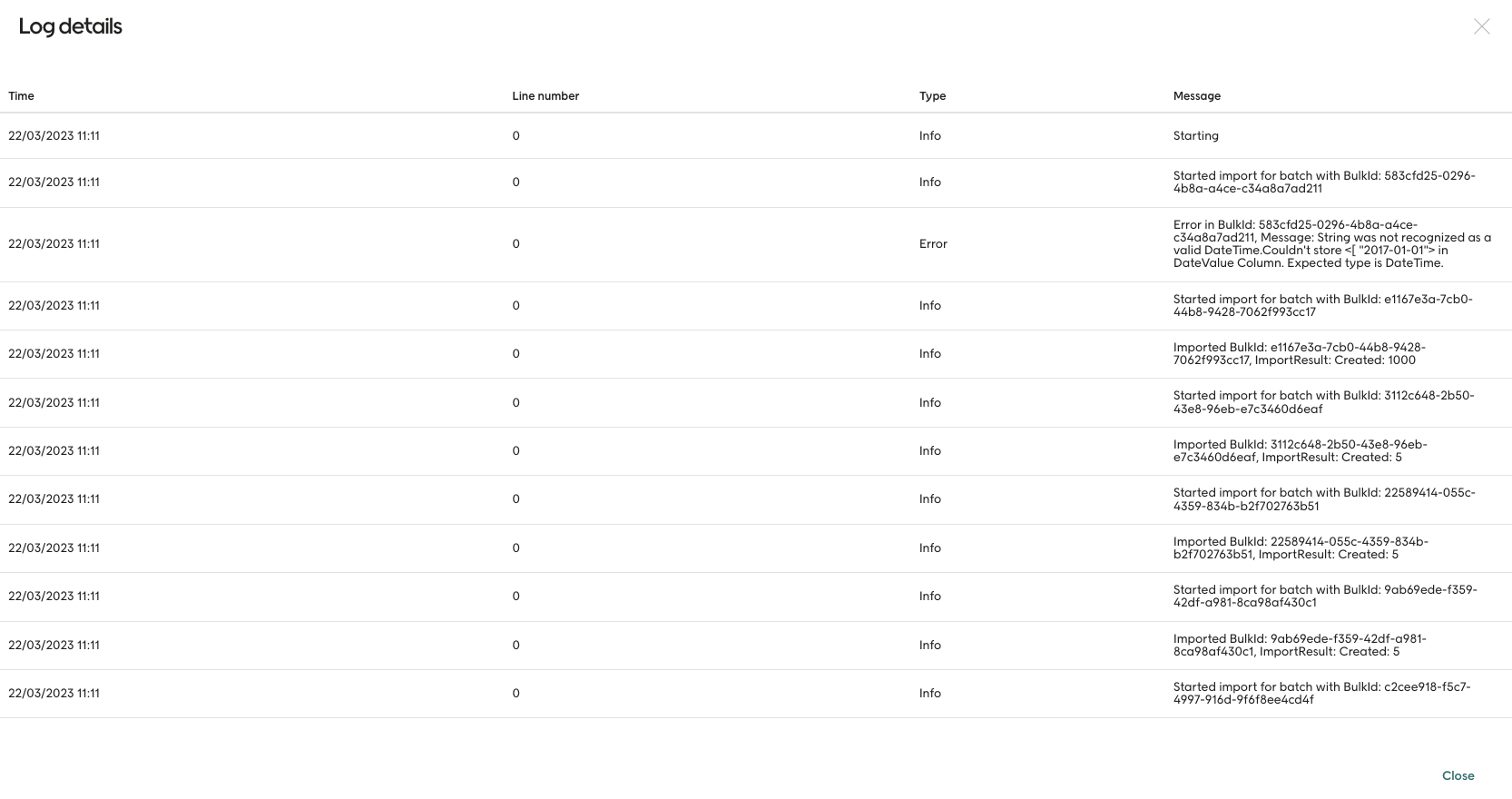 The log is especially useful when finding out what happened if things go wrong.
### Starting the job
Once you get back a status of "Received" your data is ready to be processed. This happens on a schedule, so it might not be completed right away. Keep polling the `status` endpoint to see when it's done.
### Wrong contact type
If a bulk update contains a contact of the wrong `contactType`, updating of that contact will be skipped and the job will continue.
### Contact that already exists
If a bulk create contains a contact that already exists in Engage, the existing contact will be not be changed and the job will continue. In the same way, if a bulk update refers to a contact that does not exist, that row will be skipped and the job will continue.
The log is especially useful when finding out what happened if things go wrong.
### Starting the job
Once you get back a status of "Received" your data is ready to be processed. This happens on a schedule, so it might not be completed right away. Keep polling the `status` endpoint to see when it's done.
### Wrong contact type
If a bulk update contains a contact of the wrong `contactType`, updating of that contact will be skipped and the job will continue.
### Contact that already exists
If a bulk create contains a contact that already exists in Engage, the existing contact will be not be changed and the job will continue. In the same way, if a bulk update refers to a contact that does not exist, that row will be skipped and the job will continue.