> ## Documentation Index
> Fetch the complete documentation index at: https://developer.voyado.com/llms.txt
> Use this file to discover all available pages before exploring further.
# Engage with Elevate
Voyado Elevate is a powerful search and recommendation engine, tailor-made for e-commerce. It analyses shopper behaviour (clicks, searches, purchases) to make tailored product recommendations. Recommendations adapt in real time based on behaviour on the site. By making Engage and Elevate agree on who a particular contact is, data such as audiences and behavior can be easily shared between the two products
With the Elevate integration, you can unlock a set of connected features where the two products work together in ways that aren’t possible on their own. This integration is powered by shared identification, contact data, and behavioral signals, enabling smarter personalization across channels. Examples include:
* **Connected recommendations** – Elevate generates dynamic product recommendations that can be used directly in Engage’s Design Studio.
* **Audience-driven personalization** – Elevate personalizes the on-site experience based on audiences created in Engage.
* **Current interest audiences** – Engage audiences can be built using real-time behavioral data from Elevate.
* **Smarter recommendations** – Elevate’s recommendations are enhanced with in-store purchase data captured by Engage.
By making Engage and Elevate agree on who a particular contact is, data such as audiences and behavior can be easily shared between the two products. This is done with a unified identifier called `discoveryKey`.
The `discoveryKey` attribute is used to connect the same contact in Engage and Elevate.
This article looks at how this integration between Engage and Elevate is done.
## Customer key in Elevate
In Elevate, the `customerKey` is the unique identifier for a visitor on the website.
A `customerKey` is required for every request to the Elevate API, whether for notifications or queries. To link a visitor in Elevate to an Engage contact, the `customerKey` from Elevate should be stored in the `discoveryKey` contact attribute within Engage. This enables cross-platform understanding of the visitor and enhances personalization capabilities for both Elevate and Engage.
## Identifying the visitor
There are two general ways a visitor can be identified:
* Upon entry
* During the session
When a visitor enters the site, they may arrive wither organically, from a referral or through a newsletter.
What happens next in this case depends on the `customerKey`:
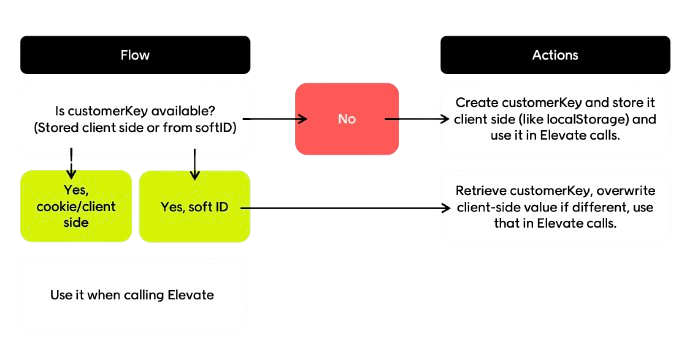
* If a `customerKey` is already available (stored client-side or retrieved from `softId`), use it in all Elevate calls
* If no `customerKey` exists, create one, store it client-side (localStorage or cookie) and then use it in Elevate calls
* If a visitor arrives via `softId` (from an Engage newsletter), you'll need to decode the `softId`, retrieve the matching `customerKey`, and overwrite the local value of `customerKey` if it is different
 For detailed behavior, see the specific visitor types below.
If the customer is not identified at entry (see above), they can be identified during the session if they:
* Creating an account
* Logging in to an existing account
* Signing up for a newsletter, wishlist, or reminder
* Placing an order
For detailed behavior, see the specific visitor types below.
If the customer is not identified at entry (see above), they can be identified during the session if they:
* Creating an account
* Logging in to an existing account
* Signing up for a newsletter, wishlist, or reminder
* Placing an order
 ### After identification
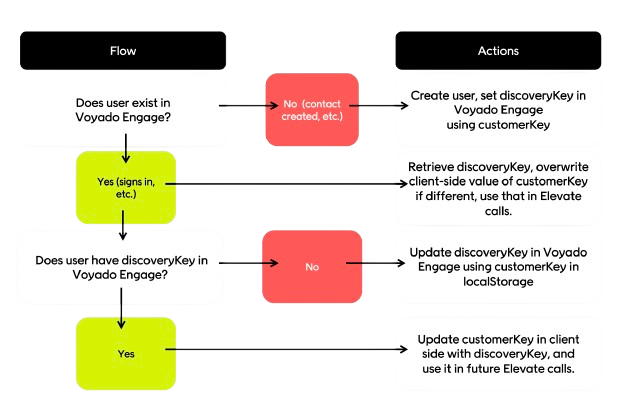
When the visitor has been identified, check if they exist in Engage.
* If they don't exist, create the contact and assign `discoveryKey` to the `customerKey` value
* If they do exist, retrieve and compare the `discoveryKey` to the client's `customerKey` and if the values are different, overwrite the client-side `customerKey` with the Engage `discoveryKey`
For detailed behavior, see the specific visitor types below.
### Best practices for identification
* Ensure Engage is updated with the `discoveryKey` for all members (visitors who can sign in)
* All `discoveryKey` values must be unique; duplicate values in Engage prevent personalization
* Always call Elevate with the existing `customerKey` when a visitor is identified
* Use Engage's `softId` for newsletters to maximize identification rate and cross-system linking
* Define a single source of truth for the `customerKey`, for example the `discoveryKey` in Engage, to resolve conflicts between local and server values
## Integration flows
Now we will examine the different flows for the three types of visitor:
* New visitors
* Returning visitor
* Newsletter visitors
### New visitor flow
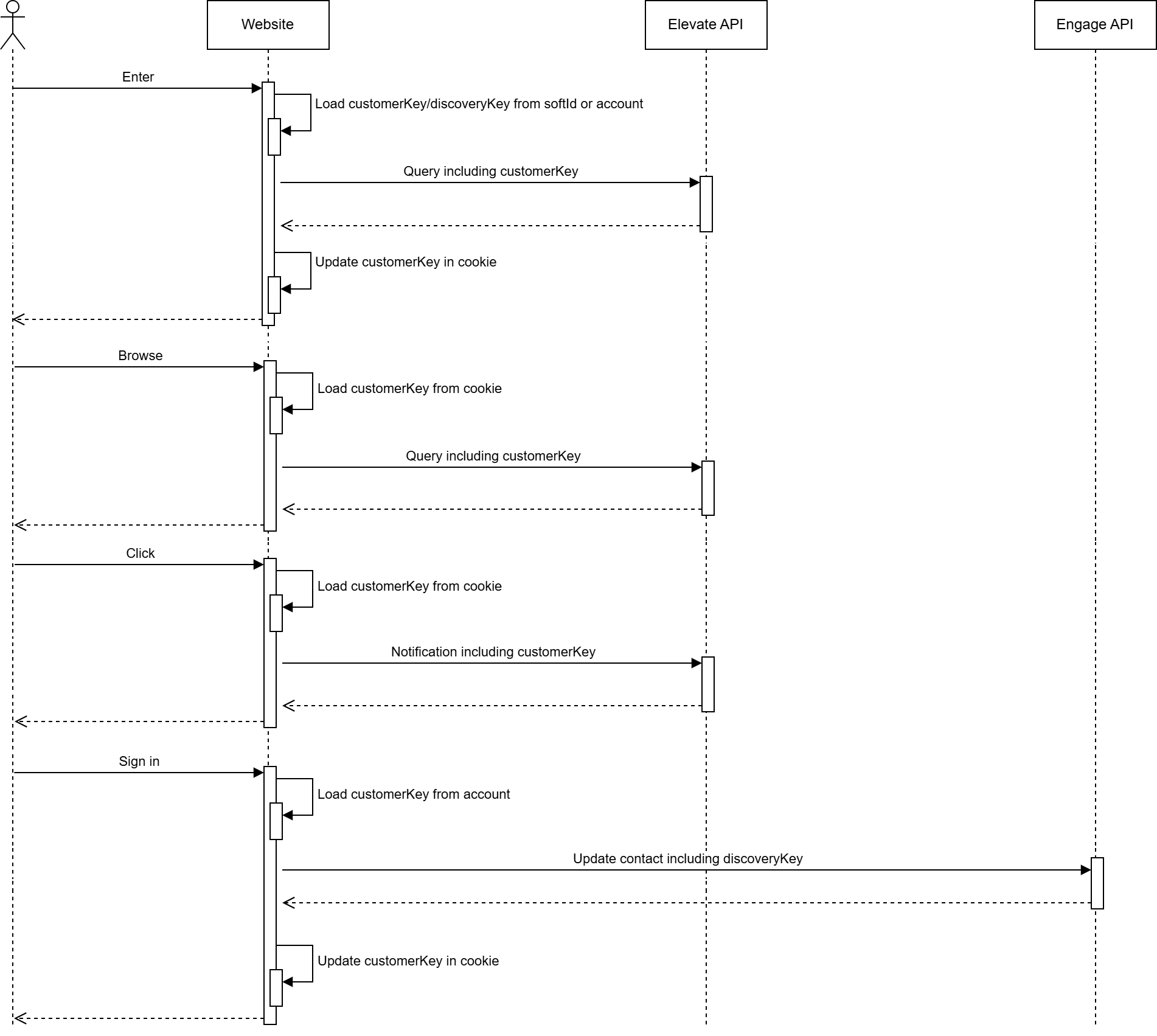
When the visitor enters the site:
* Generate a new `customerKey`
* Store that `customerKey` value on the client side
When the visitor browses, for example, a category or product page:
* Read `customerKey` from the client side
* Call Elevate API with `customerKey`
When the visitor clicks on, for example, a navigation link, add to cart or add favorite:
* Read `customerKey` from the client side
* Call Elevate API with `customerKey`
When the visitor signs up:
* Read `customerKey` from the client side
* Create user account with `customerKey`
* Call Engage API to create new contact with `discoveryKey`
* Update user account with `contactId` from Engage This should create a mapping between the user account, the Elevate `customerKey`, and the Engage `contactId`.
### After identification
When the visitor has been identified, check if they exist in Engage.
* If they don't exist, create the contact and assign `discoveryKey` to the `customerKey` value
* If they do exist, retrieve and compare the `discoveryKey` to the client's `customerKey` and if the values are different, overwrite the client-side `customerKey` with the Engage `discoveryKey`
For detailed behavior, see the specific visitor types below.
### Best practices for identification
* Ensure Engage is updated with the `discoveryKey` for all members (visitors who can sign in)
* All `discoveryKey` values must be unique; duplicate values in Engage prevent personalization
* Always call Elevate with the existing `customerKey` when a visitor is identified
* Use Engage's `softId` for newsletters to maximize identification rate and cross-system linking
* Define a single source of truth for the `customerKey`, for example the `discoveryKey` in Engage, to resolve conflicts between local and server values
## Integration flows
Now we will examine the different flows for the three types of visitor:
* New visitors
* Returning visitor
* Newsletter visitors
### New visitor flow
When the visitor enters the site:
* Generate a new `customerKey`
* Store that `customerKey` value on the client side
When the visitor browses, for example, a category or product page:
* Read `customerKey` from the client side
* Call Elevate API with `customerKey`
When the visitor clicks on, for example, a navigation link, add to cart or add favorite:
* Read `customerKey` from the client side
* Call Elevate API with `customerKey`
When the visitor signs up:
* Read `customerKey` from the client side
* Create user account with `customerKey`
* Call Engage API to create new contact with `discoveryKey`
* Update user account with `contactId` from Engage This should create a mapping between the user account, the Elevate `customerKey`, and the Engage `contactId`.
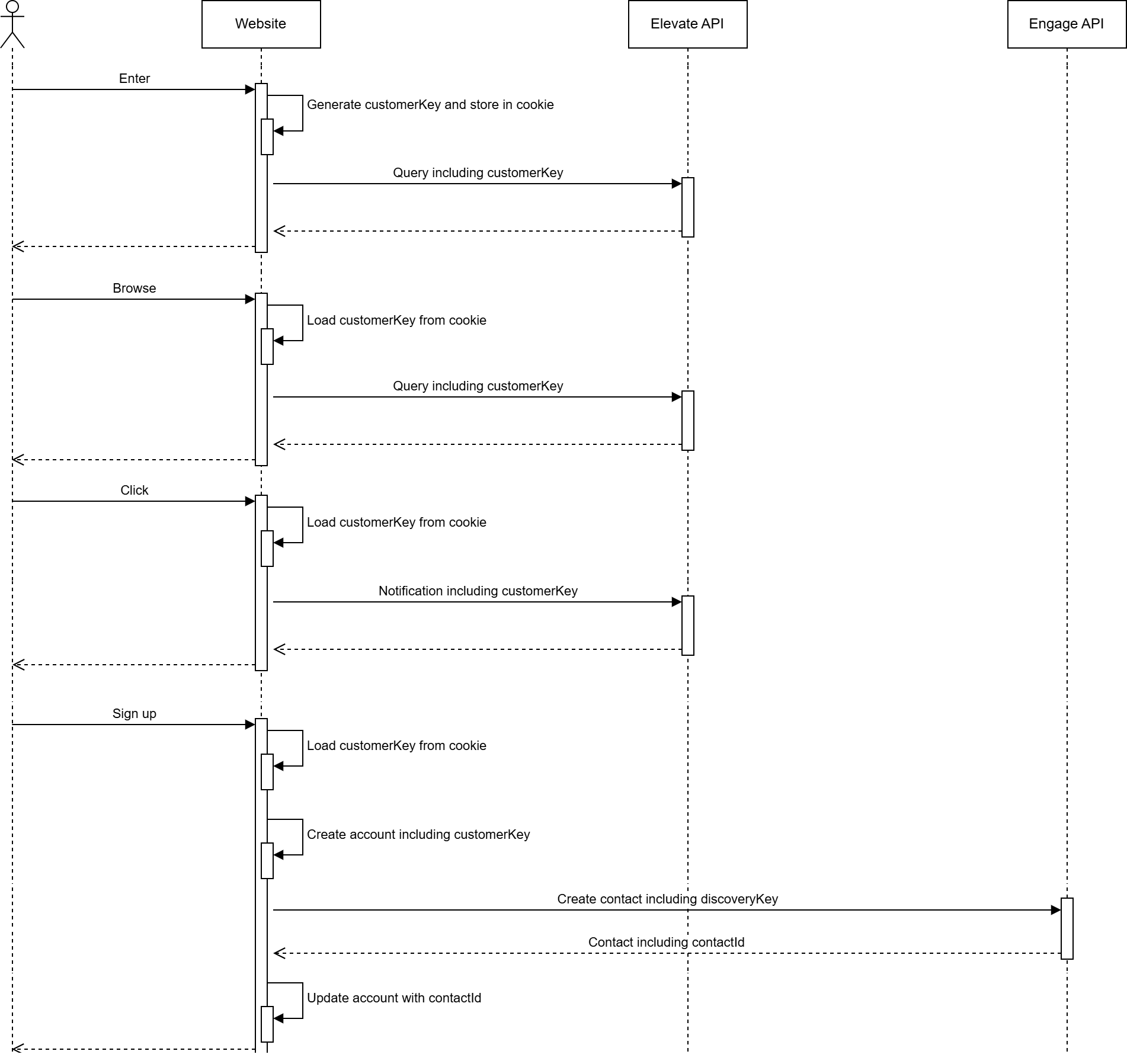 This scenario also covers situations where an unknown visitor makes a purchase and a contact is created in Engage.
### Returning visitor flow
When the visitor enters the site:
* Read `customerKey` from the client side
When the visitor browses, for example, a category or product page:
* Read `customerKey` from the client side
* Call Elevate API with `customerKey`
When the visitor clicks on, for example, a navigation link, add to cart or add favorite:
* Read `customerKey` from the client side
* Call Elevate API with `customerKey`
When the visitor signs in:
* Read `customerKey` from user account
* Call Engage API to update contact with `discoveryKey`
* Update the client side with `customerKey` The visitor is now identified, and the existing `customerKey` from the user account may differ from the `customerKey` on the client side. Therefore it is important to use the `customerKey` from the user account when calling the Engage API and to update the client side value accordingly
This scenario also covers situations where an unknown visitor makes a purchase and a contact is created in Engage.
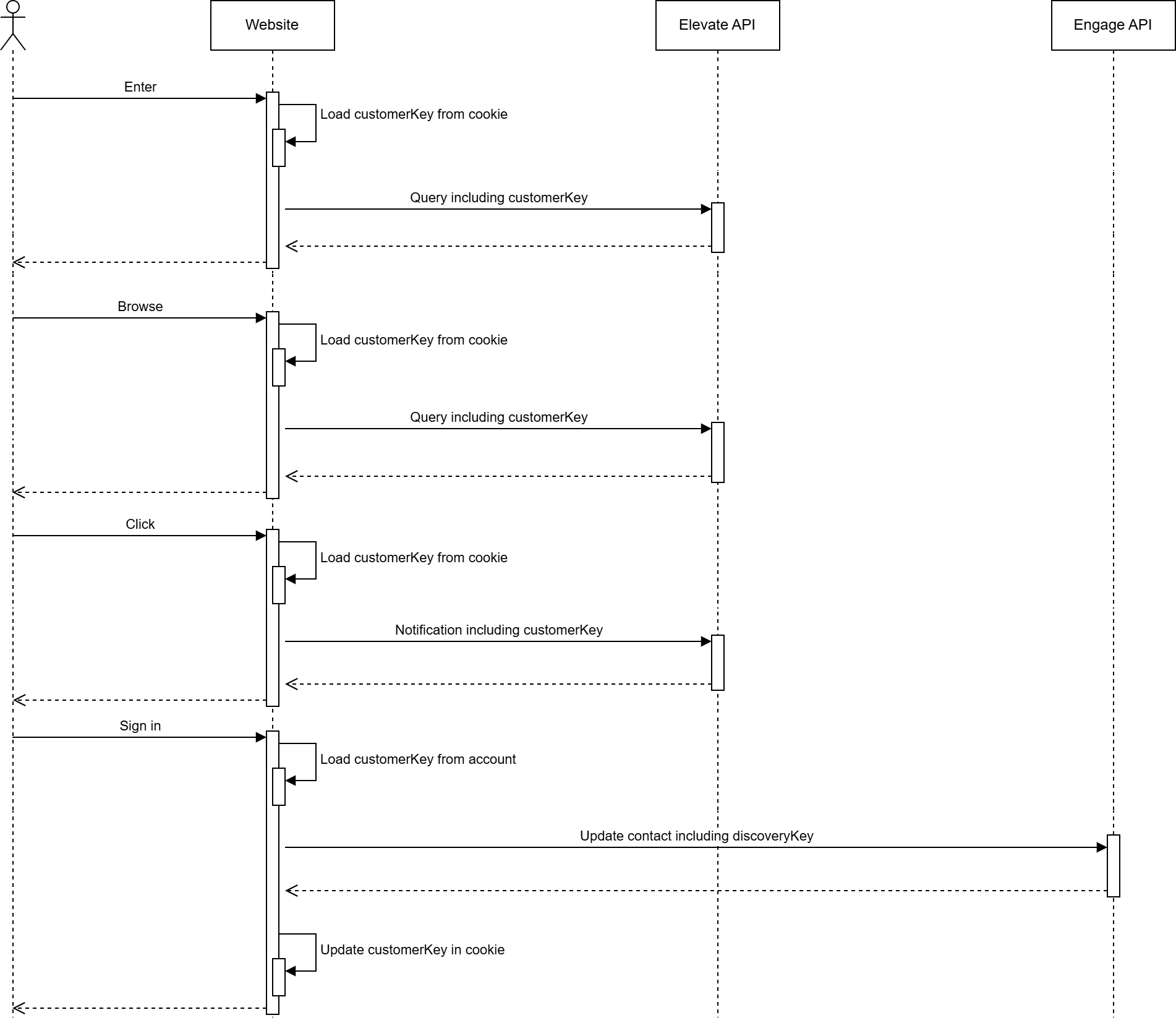
### Returning visitor flow
When the visitor enters the site:
* Read `customerKey` from the client side
When the visitor browses, for example, a category or product page:
* Read `customerKey` from the client side
* Call Elevate API with `customerKey`
When the visitor clicks on, for example, a navigation link, add to cart or add favorite:
* Read `customerKey` from the client side
* Call Elevate API with `customerKey`
When the visitor signs in:
* Read `customerKey` from user account
* Call Engage API to update contact with `discoveryKey`
* Update the client side with `customerKey` The visitor is now identified, and the existing `customerKey` from the user account may differ from the `customerKey` on the client side. Therefore it is important to use the `customerKey` from the user account when calling the Engage API and to update the client side value accordingly
 ### Newsletter visitor flow
When the visitor enters the site:
* Decode `softId` and identify visitor
* Read `discoveryKey` or `customerKey` from decoded `softId` or from user account
* Update the client side with `customerKey`
When the visitor browses, for example, a category or product page:
* Read `customerKey` from the client side
* Call Elevate API with `customerKey`
When the visitor clicks on, for example, a navigation link, add to cart or add favorite:
* Read `customerKey` from the client side
* Call Elevate API with `customerKey`
When the visitor signs in:
* Read `customerKey` from user account
* Call Engage API to update contact with `discoveryKey`
* Update the client side with `customerKey`
### Newsletter visitor flow
When the visitor enters the site:
* Decode `softId` and identify visitor
* Read `discoveryKey` or `customerKey` from decoded `softId` or from user account
* Update the client side with `customerKey`
When the visitor browses, for example, a category or product page:
* Read `customerKey` from the client side
* Call Elevate API with `customerKey`
When the visitor clicks on, for example, a navigation link, add to cart or add favorite:
* Read `customerKey` from the client side
* Call Elevate API with `customerKey`
When the visitor signs in:
* Read `customerKey` from user account
* Call Engage API to update contact with `discoveryKey`
* Update the client side with `customerKey`
 ## Identifying email traffic by discoveryKey
The `discoveryKey` is an integral part of the Engage soft login (previously called auto-login) and needs to be activated by your Engage specialist.
Soft login is critical for maximizing identification across Engage, Elevate, and between the two products. A high identification rate is the foundation for realizing the full value of the integrated Engage–Elevate setup.
The soft login happens via an encrypted query string parameter named "eclub" which holds information about the contact who has clicked on a link, such as a URL in an email campaign.
The target site back-end can listen to this query parameter and decrypt it. The decryption of the soft login should never be done on the client side for security reasons and GDPR concerns. The encryption key property in the module settings should also never be shared or made accessible in client implementations.
A soft (auto) login URL might look like this:
```http Example of soft login theme={null}
https://ourdemostore.com/?vtid=9cle0_ctRE25K6kMABznMg&eclub=FwoE65oCjhuc70IBFnszvhZJ0R37pdOYIy0x3KYzsbj3kWtwP2ByD2KP4kuRvWtx7JlyrJpaYnIvI4yAnDbFcVfMJDsXW24MgIrDyqoSw09_7KIMxGri8dYkIhW7FdFFm98n4Vq87I77mA9EsBWI6ExC_MQQkHHqa0h-7pmicZtpQMl7-WJOZCsVV0aEU6E6EX7REldFBFGfHpoWw5fukAaK7nJcg68j_f1OlBgHnwM
```
The result of the server-side decryption will be an object with the following properties, containing the `discoveryKey` which is the identification key (`customerKey`) used in interactions with Elevate.
```json Decrypted payload theme={null}
{
"id": "60333",
"email": "withnail@voyado.com",
"contactId": "d35ec9f5-2df7-4d44-b92b-a90c001ce732",
"dateTime": "2022-05-11T13:15:40Z",
"discoveryKey": "0b05119e-eeb8-418a-bbfb-defa0dde417e"
}
```
### Engage soft identification on Elevate powered websites
A customer website running both Engage and Elevate must decrypt the soft login server-side and use the resulting `discoveryKey` as the `customerKey` in all subsequent calls to Elevate.
This ensures that traffic originating from Engage (for example email campaigns) is correctly identified in Elevate, allowing personalization, tracking, and recommendations to be applied consistently from the first page view.
If the decrypted payload does not contain a `discoveryKey`, it indicates that the contact has not previously been identified in Elevate and should be treated as a new or anonymous visitor.
## SKU and variant key need to match
In Engage the SKU (stock-keeping unit) is a standard article property. Elevate, however, refers to articles as *products*, and the variations of products as *variants*.
Each product and variant in Elevate has a unique key and must use a `variantKey` that corresponds to the article `SKU` in Engage.
Several features depend on these values being aligned. For example, Engage retrieves product metadata from Elevate to render product recommendations, and matching keys are also required for Elevate to consume in-store purchase data from Engage.
If the Engage and Elevate feeds are not aligned, contact your Engage representative to discuss next steps. Be aware that some features will be unavailable until the feeds are aligned.
## Verifying discoveryKey implementation
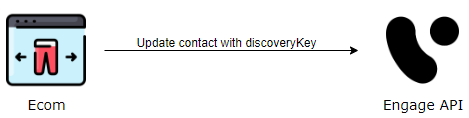
The e-com platform/site should include `discoveryKey` in every create/update contact request made to the Engage API.
## Identifying email traffic by discoveryKey
The `discoveryKey` is an integral part of the Engage soft login (previously called auto-login) and needs to be activated by your Engage specialist.
Soft login is critical for maximizing identification across Engage, Elevate, and between the two products. A high identification rate is the foundation for realizing the full value of the integrated Engage–Elevate setup.
The soft login happens via an encrypted query string parameter named "eclub" which holds information about the contact who has clicked on a link, such as a URL in an email campaign.
The target site back-end can listen to this query parameter and decrypt it. The decryption of the soft login should never be done on the client side for security reasons and GDPR concerns. The encryption key property in the module settings should also never be shared or made accessible in client implementations.
A soft (auto) login URL might look like this:
```http Example of soft login theme={null}
https://ourdemostore.com/?vtid=9cle0_ctRE25K6kMABznMg&eclub=FwoE65oCjhuc70IBFnszvhZJ0R37pdOYIy0x3KYzsbj3kWtwP2ByD2KP4kuRvWtx7JlyrJpaYnIvI4yAnDbFcVfMJDsXW24MgIrDyqoSw09_7KIMxGri8dYkIhW7FdFFm98n4Vq87I77mA9EsBWI6ExC_MQQkHHqa0h-7pmicZtpQMl7-WJOZCsVV0aEU6E6EX7REldFBFGfHpoWw5fukAaK7nJcg68j_f1OlBgHnwM
```
The result of the server-side decryption will be an object with the following properties, containing the `discoveryKey` which is the identification key (`customerKey`) used in interactions with Elevate.
```json Decrypted payload theme={null}
{
"id": "60333",
"email": "withnail@voyado.com",
"contactId": "d35ec9f5-2df7-4d44-b92b-a90c001ce732",
"dateTime": "2022-05-11T13:15:40Z",
"discoveryKey": "0b05119e-eeb8-418a-bbfb-defa0dde417e"
}
```
### Engage soft identification on Elevate powered websites
A customer website running both Engage and Elevate must decrypt the soft login server-side and use the resulting `discoveryKey` as the `customerKey` in all subsequent calls to Elevate.
This ensures that traffic originating from Engage (for example email campaigns) is correctly identified in Elevate, allowing personalization, tracking, and recommendations to be applied consistently from the first page view.
If the decrypted payload does not contain a `discoveryKey`, it indicates that the contact has not previously been identified in Elevate and should be treated as a new or anonymous visitor.
## SKU and variant key need to match
In Engage the SKU (stock-keeping unit) is a standard article property. Elevate, however, refers to articles as *products*, and the variations of products as *variants*.
Each product and variant in Elevate has a unique key and must use a `variantKey` that corresponds to the article `SKU` in Engage.
Several features depend on these values being aligned. For example, Engage retrieves product metadata from Elevate to render product recommendations, and matching keys are also required for Elevate to consume in-store purchase data from Engage.
If the Engage and Elevate feeds are not aligned, contact your Engage representative to discuss next steps. Be aware that some features will be unavailable until the feeds are aligned.
## Verifying discoveryKey implementation
The e-com platform/site should include `discoveryKey` in every create/update contact request made to the Engage API.
 There are three ways this identification can be done:
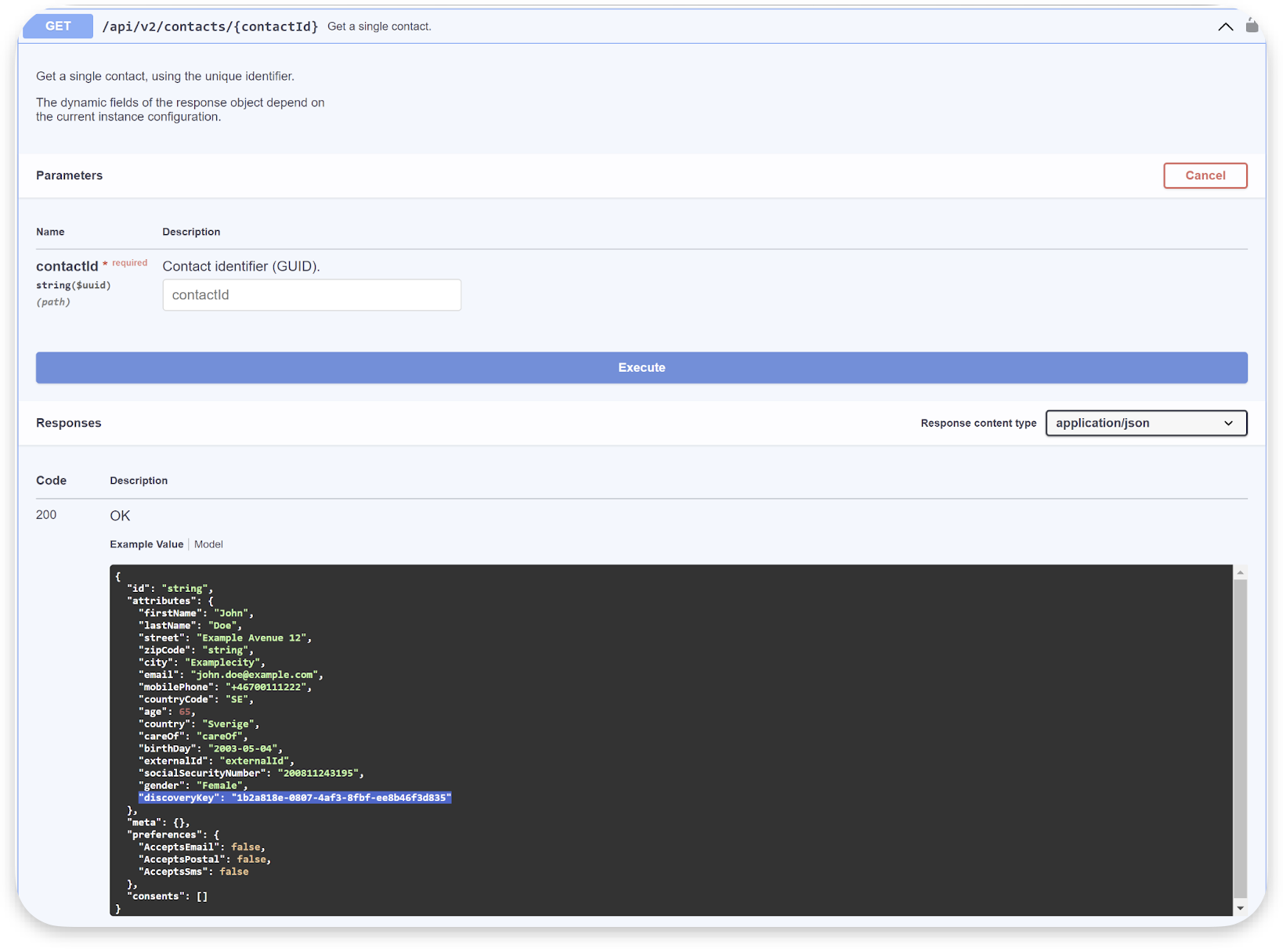
### Verify by API
Verification can be done by API requests. The following endpoints include `discoveryKey` in the response:
```http theme={null}
GET /api/v3/contactoverview
```
```http theme={null}
GET /api/v3/contacts
```
There are three ways this identification can be done:
### Verify by API
Verification can be done by API requests. The following endpoints include `discoveryKey` in the response:
```http theme={null}
GET /api/v3/contactoverview
```
```http theme={null}
GET /api/v3/contacts
```
 ### Verify end-to-end
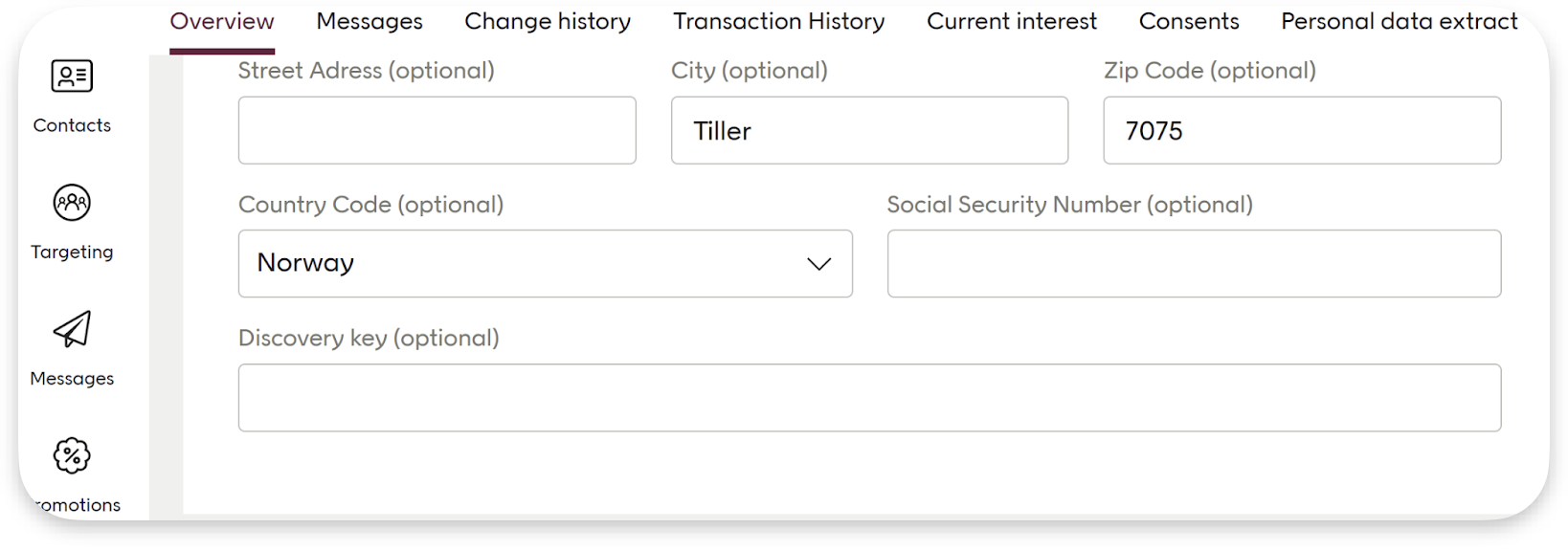
This is a simple way to test the `discoveryKey` implementation end-to-end.
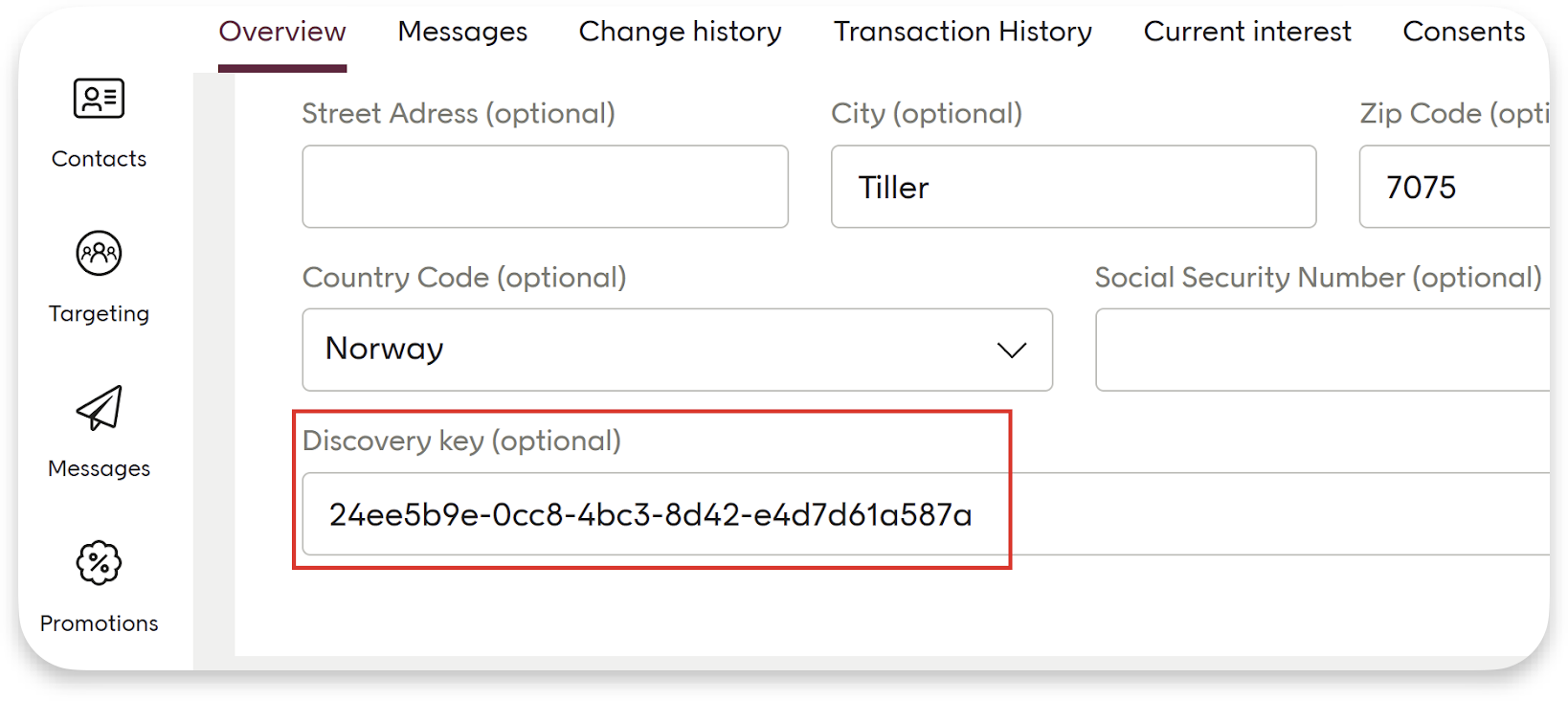
1. Go to the contact card in Engage for your user. Note that the "Discovery key" field is empty.
### Verify end-to-end
This is a simple way to test the `discoveryKey` implementation end-to-end.
1. Go to the contact card in Engage for your user. Note that the "Discovery key" field is empty.
 2. Go to the storefront of the retailer
3. Identify yourself on the site, either by signing in or creating an account. If possible, take note of the `customerKey` or ID if that is stored for a contact in the e-com/back-end system. This may be needed for future reference or troubleshooting.
4. Now back to the Engage tenant. Confirm that the `discoveryKey` has been applied to the contact by checking the field in the contact card. If you have noted the `customerKey` or ID in step 3, verify that it matches.
2. Go to the storefront of the retailer
3. Identify yourself on the site, either by signing in or creating an account. If possible, take note of the `customerKey` or ID if that is stored for a contact in the e-com/back-end system. This may be needed for future reference or troubleshooting.
4. Now back to the Engage tenant. Confirm that the `discoveryKey` has been applied to the contact by checking the field in the contact card. If you have noted the `customerKey` or ID in step 3, verify that it matches.
 5. This is an optional step you can do if the e-com/website creates a pre-membership account during newsletter sign-up. You can verify if the `discoveryKey` has been assigned to the pre-membership contact in the Engage tenant by signing up for a newsletter and checking the `discoveryKey` of the newly created contact in the Engage tenant.
### Verify in dev tools
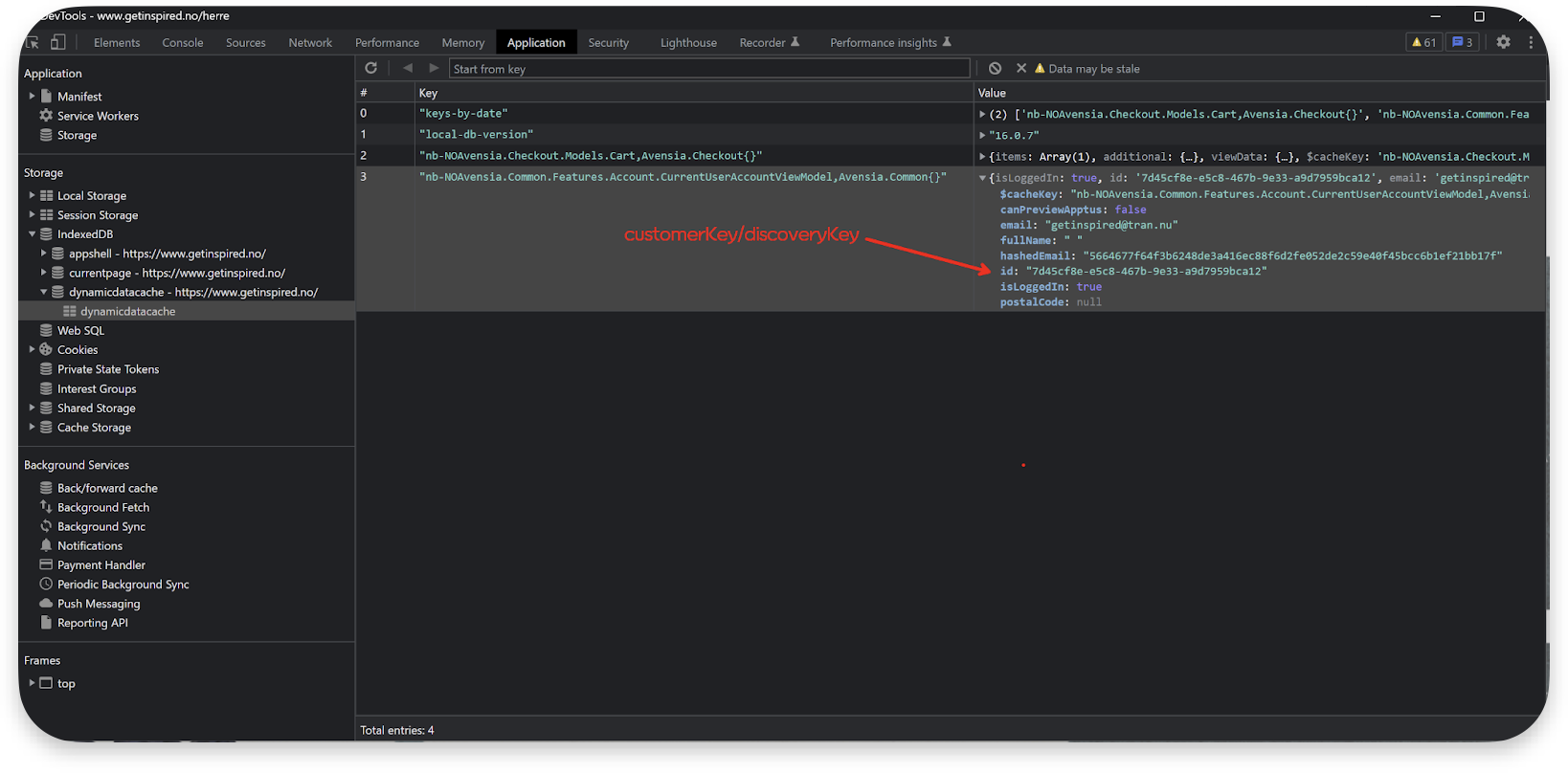
Sometimes it is possible to verify that the Elevate `customerKey` matches the `discoveryKey` in the Engage contact card by using the browser's developer console. Here you can analyze network communication and browser storage for clues to confirm the match between the `customerKey` and `discoveryKey`.
This ensures that the correct user data is being used for current interests.
5. This is an optional step you can do if the e-com/website creates a pre-membership account during newsletter sign-up. You can verify if the `discoveryKey` has been assigned to the pre-membership contact in the Engage tenant by signing up for a newsletter and checking the `discoveryKey` of the newly created contact in the Engage tenant.
### Verify in dev tools
Sometimes it is possible to verify that the Elevate `customerKey` matches the `discoveryKey` in the Engage contact card by using the browser's developer console. Here you can analyze network communication and browser storage for clues to confirm the match between the `customerKey` and `discoveryKey`.
This ensures that the correct user data is being used for current interests.
 ## Handling duplicate discoverKey values
All contacts in Engage must have unique a `discoveryKey` value. If a `discoveryKey` is not unique, this can block contact creation and prevent personalization from working correctly.
### When a validation error occurs
A `discoveryKey` validation error means that the `discoveryKey` you tried to save already exists in Engage. New or updated contacts are validated when added through the Contact API v2/v3. Other interfaces for creating or updating contacts, such as bulk endpoints, are not affected by this validation.
In this case, an error will be returned:
```json Error when discoveryKey is already in use theme={null}
{
"errors": [
{
"code": "DuplicateDiscoveryKey",
"message": "The discoveryKey already exists and must be unique."
}
]
}
```
If you receive this error repeatedly, it may indicate that your website is not assigning unique `discoveryKey` values to visitors. This can sometimes be related to how your site generates and stores identifiers, including through connection with integrations (for example, to Voyado Elevate).
### Resolving the issue
Your site must always assign visitors a new, unique `discoveryKey`. Once generated, this new `discoveryKey` must be used in:
* Contact API requests
* The visitor's cookie
* Any other system where `discoveryKey` is stored (such as databases, Engage, Elevate)
How this is implemented is site-specific, but the goal is always the same: to ensure that every visitor and member has a unique `discoveryKey` across all systems.
### Cleaning up duplicates
Before cleaning up existing duplicates:
* Make sure no new duplicates are being added.
* Confirm that the normal flows for adding and updating contacts work correctly (without disabling validation)
Here are three imoportant cases when handling duplicates:
If your e-commerce platform or another system is the master of `discoveryKey`, duplicates must be resolved there first. Once corrected, you will then send the updated `discoveryKey` values to Engage.
If Engage is the master of `discoveryKey`, duplicates can be removed directly within Engage. Contact Voyado Support for assistance with this process.
If you prefer to update duplicate records rather than remove them, the master system must:
* Identify which contacts to update.
* Send the changes to Engage (via API or integration).
Depending on the scale and complexity, this process may require assistance from Voyado Support to export duplicate lists or perform bulk updates.
## Handling duplicate discoverKey values
All contacts in Engage must have unique a `discoveryKey` value. If a `discoveryKey` is not unique, this can block contact creation and prevent personalization from working correctly.
### When a validation error occurs
A `discoveryKey` validation error means that the `discoveryKey` you tried to save already exists in Engage. New or updated contacts are validated when added through the Contact API v2/v3. Other interfaces for creating or updating contacts, such as bulk endpoints, are not affected by this validation.
In this case, an error will be returned:
```json Error when discoveryKey is already in use theme={null}
{
"errors": [
{
"code": "DuplicateDiscoveryKey",
"message": "The discoveryKey already exists and must be unique."
}
]
}
```
If you receive this error repeatedly, it may indicate that your website is not assigning unique `discoveryKey` values to visitors. This can sometimes be related to how your site generates and stores identifiers, including through connection with integrations (for example, to Voyado Elevate).
### Resolving the issue
Your site must always assign visitors a new, unique `discoveryKey`. Once generated, this new `discoveryKey` must be used in:
* Contact API requests
* The visitor's cookie
* Any other system where `discoveryKey` is stored (such as databases, Engage, Elevate)
How this is implemented is site-specific, but the goal is always the same: to ensure that every visitor and member has a unique `discoveryKey` across all systems.
### Cleaning up duplicates
Before cleaning up existing duplicates:
* Make sure no new duplicates are being added.
* Confirm that the normal flows for adding and updating contacts work correctly (without disabling validation)
Here are three imoportant cases when handling duplicates:
If your e-commerce platform or another system is the master of `discoveryKey`, duplicates must be resolved there first. Once corrected, you will then send the updated `discoveryKey` values to Engage.
If Engage is the master of `discoveryKey`, duplicates can be removed directly within Engage. Contact Voyado Support for assistance with this process.
If you prefer to update duplicate records rather than remove them, the master system must:
* Identify which contacts to update.
* Send the changes to Engage (via API or integration).
Depending on the scale and complexity, this process may require assistance from Voyado Support to export duplicate lists or perform bulk updates.