> ## Documentation Index
> Fetch the complete documentation index at: https://developer.voyado.com/llms.txt
> Use this file to discover all available pages before exploring further.
# File transfer by FTP
This is how file transfer by FTP is done for your Engage environment.
To transfer your files by FTP, you will need to install an FTP client on your end. For example, Filezilla, but there are many FTP clients to choose from.

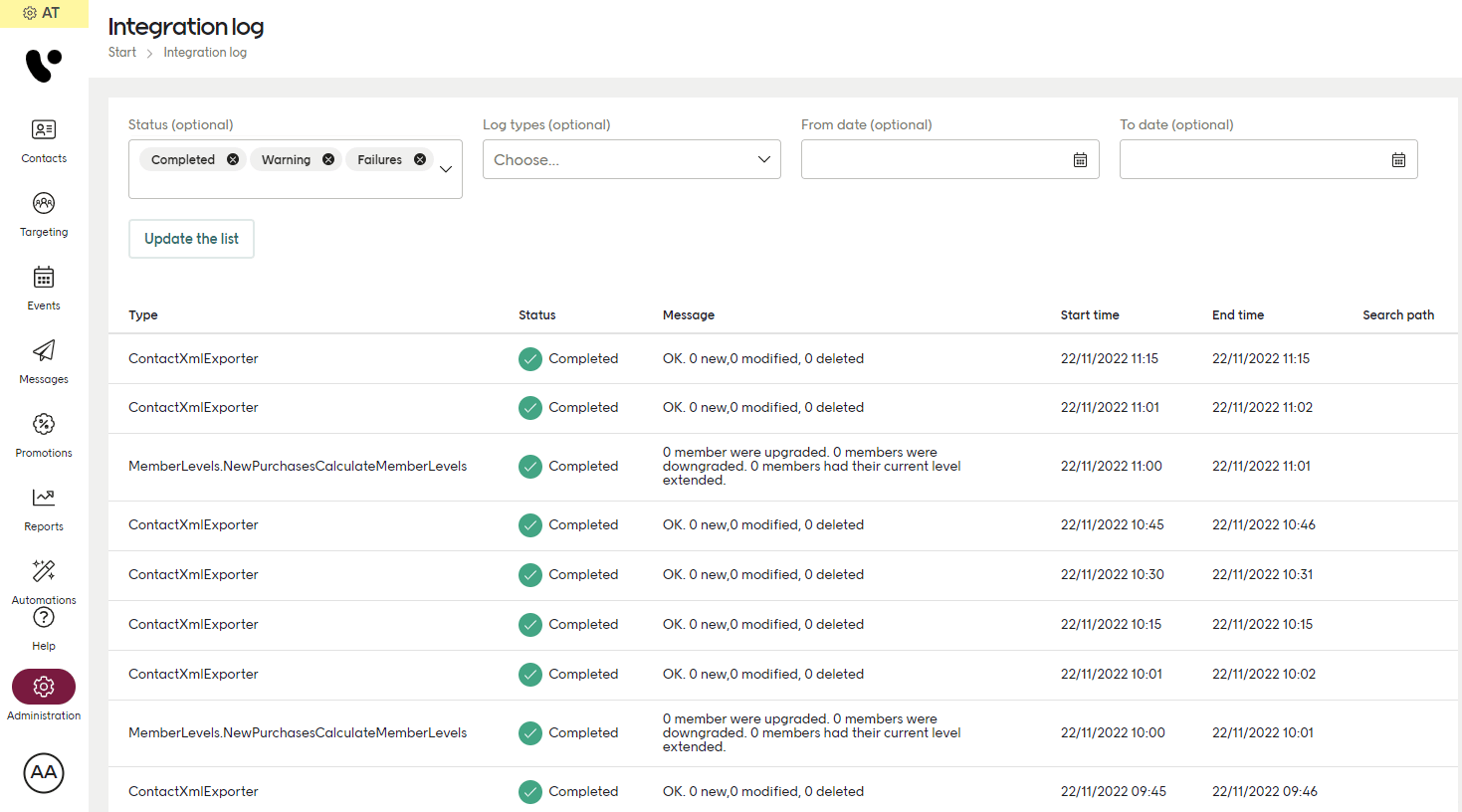
 When the import batch job is triggered, Engage begins processing files and importing the transactions. Once a file is processed you will be able to see the status of the import on the Integration log (see image below). The processed file will then be deleted from the FTP folder.
 ## FTP access
For both **staging** and **production**, you access your FTP like this:
```http theme={null}
Domain: ftp.voyado.com
```
```http theme={null}
Port: 22
```
```http theme={null}
Protocol: SFTP
```
Your FTP user configuration determines whether you have access to staging or production.
Your username and password are assigned by your Voyado team.
## Preparing your file
Here are some things to check before doing a CSV or XML file import.
### Maximum number of contacts
Don't exceed 20 000 contacts per file. This is not a hard limit but a strong recommendation, since large files can make the server slow and risk causing a timeout.
Keep the number of contacts per file under 20 000.
### Encoding and syntax
The encoding of your CSV and XML files must be UTF-8.
For XML files, follow the scheme specified per import type:
It is also good practice (although not mandatory) to follow the XML-syntax provided for each import. When these field names are followed, no client-specific XSLT transformation needs to be done on the Engage side.
### Time and dates
The required date format is [ISO 8601](https://en.wikipedia.org/wiki/ISO_8601) with a time zone designator, for example: **2021-01-26T15:10:17+01:00**.
Date of birth (for example on a Contacts migration) is allowed to also use the simpler: **YYYY-MM-DD**.
### Other CSV information
Your CSV should use semicolon (;) as a delimiter to separate the fields. This also means that you can't use ; anywhere in a value string.
The order of the fields in a CSV does not matter.
Some characters can break a file import and might need to be *escaped* before import. For example, the double quote character ("). A double quote can be a part of a product name or description, since " is the symbol used for "inch":
```text String written normally theme={null}
Samsung 42" TV
```
Fix this by adding a backslash before every " in your CSV (this is called "escaping" the character). A search-and-replace is probably the best way to do this.
The example above will then be:
```text Escaped string theme={null}
Samsung 42\" TV
```
## FTP access
For both **staging** and **production**, you access your FTP like this:
```http theme={null}
Domain: ftp.voyado.com
```
```http theme={null}
Port: 22
```
```http theme={null}
Protocol: SFTP
```
Your FTP user configuration determines whether you have access to staging or production.
Your username and password are assigned by your Voyado team.
## Preparing your file
Here are some things to check before doing a CSV or XML file import.
### Maximum number of contacts
Don't exceed 20 000 contacts per file. This is not a hard limit but a strong recommendation, since large files can make the server slow and risk causing a timeout.
Keep the number of contacts per file under 20 000.
### Encoding and syntax
The encoding of your CSV and XML files must be UTF-8.
For XML files, follow the scheme specified per import type:
It is also good practice (although not mandatory) to follow the XML-syntax provided for each import. When these field names are followed, no client-specific XSLT transformation needs to be done on the Engage side.
### Time and dates
The required date format is [ISO 8601](https://en.wikipedia.org/wiki/ISO_8601) with a time zone designator, for example: **2021-01-26T15:10:17+01:00**.
Date of birth (for example on a Contacts migration) is allowed to also use the simpler: **YYYY-MM-DD**.
### Other CSV information
Your CSV should use semicolon (;) as a delimiter to separate the fields. This also means that you can't use ; anywhere in a value string.
The order of the fields in a CSV does not matter.
Some characters can break a file import and might need to be *escaped* before import. For example, the double quote character ("). A double quote can be a part of a product name or description, since " is the symbol used for "inch":
```text String written normally theme={null}
Samsung 42" TV
```
Fix this by adding a backslash before every " in your CSV (this is called "escaping" the character). A search-and-replace is probably the best way to do this.
The example above will then be:
```text Escaped string theme={null}
Samsung 42\" TV
```