> ## Documentation Index
> Fetch the complete documentation index at: https://developer.voyado.com/llms.txt
> Use this file to discover all available pages before exploring further.
# Promotions
Rewarding your customers always pays off. For this, Engage has a Promotions module. There are several kinds of promotions available in Engage but the kind you can interact with via the Engage API are *multichannel promotions* so these are the main focus here.
## About multichannel promotions
A multichannel promotion is a promotion that can be set up to be redeemed in-store or online or both ways. These promotions can be assigned to a contact based on their previous purchases or on any other type of contact data or interaction. You can assign multichannel promotions to segments as well as to single contacts in Engage. For this reason they're also known as *personal offers*.
**In-store** the contact is identified at the POS and all their active multichannel promotions are fetched from Engage and are ready to use.
**Online** the customer will also need to identify themselves at some point in the flow, either by logging in, or when they fill in their details at the checkout. Then all available multichannel promotions can be fetched from Engage and shown. How exactly this is done will depend on how the e-com has been set up.
 ### Value types
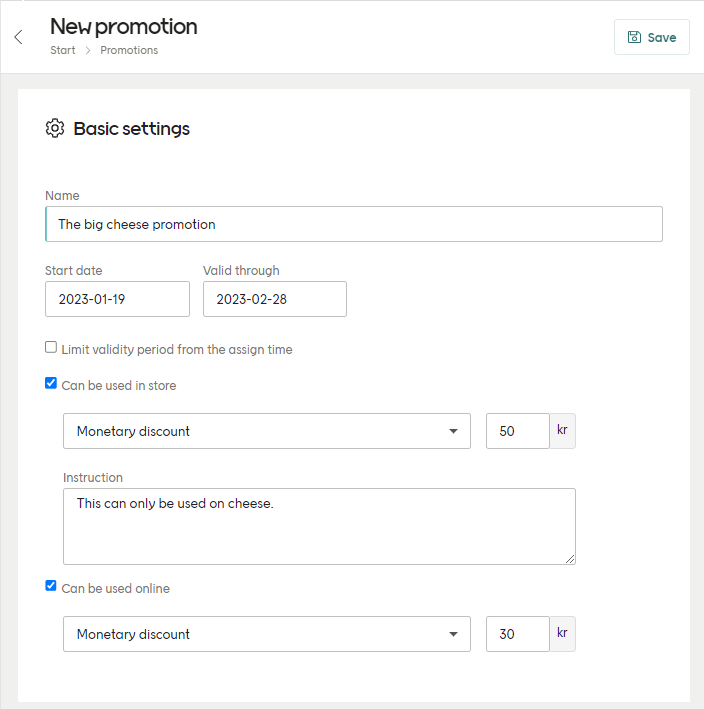
When setting up your multichannel promotion you'll need to select the *type* from the dropdown. You can use different values for "Can be used in store" and "Can be used online" in the same promotion. The options available are:
* Monetary discount
* Discount in percent
* Manual instruction (only for in-store POS)
* External promotion code
In the value type "External promotion code" the actual price rule is not stored in the promotion itself but in the retailer's system (such as ERP or e-com platform). When this kind of promotion is displayed, the POS looks up the relevant price rule using the external promotion code and then displays those details. Staff or customers, however, will not notice this happening.
## Get promotions for contact
This endpoint is used to fetch all available promotions assigned to a contact:
```http theme={null}
GET /api/v3/promotion-assignments
```
The contact's unique ID sent in the query string. If you have some other contact identifier, use [this endpoint](/docs/contacts/identify-contact/find-contact) to get the `contactId` to use in this request.
"ECOM", "POS" or "OTHER". If left out, all promotions will be returned.
An example request will then look like this:
```http theme={null}
GET /api/v3/promotion-assignments?contactId=67ea5555-0e09-484f-b4c4-aa3e00e1e24c&redemptionChannelType=ECOM
```
And a response has the following structure:
```json theme={null}
[
{
"id": "00000000-0000-0000-0000-000000000000",
"promotionId": "00000000-0000-0000-0000-000000000000",
"externalId": "string",
"type": "string",
"name": "string",
"expiresOn": "2026-04-24T10:44:50.626Z",
"validFrom": "2026-04-24T10:44:50.626Z",
"heading": "string",
"description": "string",
"redeemed": true,
"redeemedOn": "2026-04-24T10:44:50.626Z",
"assignedOn": "2026-04-24T10:44:50.626Z",
"source": "Automation",
"imageUrl": "string",
"link": "string",
"redemptionChannels": [
{
"type": "POS",
"valueType": "PERCENT",
"value": 10,
"localValues": [
{
"amount": 123.45,
"currency": "EUR"
}
],
"instruction": "string"
}
]
}
]
```
A request to this endpoint will only return those promotions where the assigned promotion AND the main promotion are active, with a start date that is not in the future. This query will not filter out redeemed promotions as long as they otherwise fulfill the criteria for being active.
### Redemption channels
The object `redemptionChannels` in the response specifies if a promotion is a percentage, a monetary amount to be withdrawn from the total amount of the transaction, or an external discount code that refers to a price rule in your platform.
```json theme={null}
[
{
...
"redemptionChannels": [
{
"type": "POS",
"valueType": "MONEY",
"value": {
"currency": "EUR",
"amount": 10
},
"instruction": null
}
]
}
...
]
```
**redemptionChannels.type** declares which channel the promotion applies to.
**redemptionChannels.valueType** declares which type of discount we want to assign (percentage, monetary or external code).
**redemptionChannels.value** is the percentage, monetary amount or the external code referring to the external price rule. With a monetary discount we also expose the group currency set in Engage for the specific client.
**redemptionChannels.instruction** is an instruction that can be added to the promotion by the Engage user to, for example, give some information to store staff regarding the promotion.
These can be displayed in all currencies declared in your Engage environment.
```json theme={null}
"redemptionChannels": [
{
"type": "POS",
"valueType": "PERCENT",
"value": 15,
"instruction": "POS instructions."
}
]
```
```json theme={null}
"redemptionChannels": [
{
"type": "ECOM",
"valueType": "EXTERNALOFFER",
"value": "DISCOUNTCODE",
"instruction": "POS instructions."
}
]
```
```json theme={null}
"redemptionChannels": [
{
"type": "POS",
"valueType": "MONEY",
"value": {
"currency": "EUR",
"amount": 10
}
}
]
```
## Assign a promotion
Promotions can be assigned to contacts either though a file import, manually in the Engage UI, or over the Engage API.
### Assign promotion by API
Use this endpoint:
```http theme={null}
POST /api/v3/promotion-assignments
```
With the following kind of payload:
```json theme={null}
{
"contactId": "e0e63d15-1881-4f9a-9ce1-94c3e21c6f47",
"promotionId": "132aa326-fa89-4a8b-af9f-0b232157f8a2"
}
```
If your request has been successful, you'll get a *HTTP 200 OK* response.
Otherwise you'll get one of these:
* *400: InvalidContactId, InvalidPromotionId*
* *404: ContactNotFound, PromotionNotFound*
### Assign promotion by XML
Assigning promotions by XML file import are covered in this article:
## Redeem a promotion
When getting a contact's promotion data, you'll get back something like this:
```json theme={null}
[
{
"id": "bb247ef7-80bb-440c-beb7-ab4172e56666",
"promotionId": "1a50b7aa-d697-4dc6-3ce7-ab2c00b3a920",
"externalId": "SO-14034",
"type": "Multichannel",
...
"redemptionChannels": [
{
"type": "POS",
"valueType": "EXTERNALOFFER",
"value": "10056",
"instruction": null
},
{
"type": "ECOM",
"valueType": "EXTERNALOFFER",
"value": "10056",
"instruction": null
}
]
}
]
```
Note that several IDs are mentioned here:
* **promotionId** - This is the main ID of the promotion (the "template" this promotion was created from). Several users can have the same value for this, since it just refers to the main promotion. This CAN'T be used to redeem a promotion for a specific contact.
* **id** - This identifies a specific "instance" of the promotion that was created from the "template" that was identified by `promotionId`. The `id` value is unique to that contact and is the one used when redeeming this promotion for them.
* **externalId** - This value exists when the promotion has been created over the API. If the promotion was created manually in the Engage UI, this is null. It is not important when redeeming the promotion.
The value returned as `id` is the promotion instance ID and this is what you must use to redeem a promotion.
### How to redeem
A promotion is redeemed for a contact using the promotion's unique ID and the redemption channel, which is either:
* "POS"
* "ECOM"
Since a promotion's ID is always connected to a unique contact, the contact's details do not have to be used.
To redeem the promotion, use this endpoint:
```http theme={null}
POST /api/v3/promotion-assignments/{id}/redeem
```
You'll also send a request payload with the redemption channel:
```json theme={null}
{
"redemptionChannel": "ECOM"
}
```
After 4.5 seconds **this endpoint will time out**, provided it has not already saved the promotion as redeemed. If the promotion *has* been redeemed (this is also known as the "point of no return") when the 4.5 seconds limit is passed, the request will be processed until completion. It is recommended to not have a timeout **shorter than 60 seconds**, in order to avoid situations where a promotion is redeemed in Engage but the calling system does not know it due to aborting the request.
### Redemption response codes
If the request has been successful, you'll get a *HTTP 200 OK* response.
Otherwise you'll get one of these:
* *400: NotAValidRedemptionChannel, InvalidPromotionIdNoData*
* *404: PromotionNotFound, PromotionNotAssociatedWithContact*
* *409: PromotionNotValidForRedemptionChannel, PromotionAlreadyRedeemed, PromotionAlreadyRedeemed*
* *504: GatewayTimeout*
## Create a promotion
Creation of a multichannel promotion can be done in three ways:
1. In the Engage UI
2. Over the Engage API
3. By an XML file import
In this section we'll consider creating a multichannel promotions via the Engage API.
A new promotion is created in Engage as a draft. It must then be activated so that it can be assigned to individual contacts. This assignment must be manually done in the Engage UI.
Create a draft promotion using the following endpoint:
```http theme={null}
POST /api/v3/promotions/multichannels
```
You can create a promotion in two ways:
* By giving a start date and a validity time
* By giving a start date and an end date
When sending in the `startDate` or `endDate` send only the year, month and day as in the examples shown below. Specific times in a day cannot be used.
Here is what such a request looks like:
```json theme={null}
{
"externalId": "externalIdentifier",
"name": "Example promotion name",
"validity": {
"startDate": "2020-03-18",
"assignedValidity": {
"unit": "Months",
"amount": 3
}
},
"presentation": {
"heading": "Example heading",
"description": "Example description",
"link": "http://www.example.com"
},
"redemptionChannels": [
{
"type": "POS",
"valueType": "EXTERNALOFFER",
"value": "POS-CAMPAIGN-123",
"instruction": "Example POS instruction"
},
{
"type": "ECOM",
"valueType": "EXTERNALOFFER",
"value": "ECOM-CAMPAIGN-1337"
}
]
}
```
Here is a successful response, containing the promotion's ID:
```json theme={null}
{
"id": "9125f018-1838-4f65-929d-87f0b4353661",
"status": "Draft",
"externalId": "externalIdentifier",
"name": "Example promotion ame",
"validity": {
"startDate": "2020-03-18T00:00:00+02:00",
"assignedValidity": {
"unit": "Months",
"amount": 3
}
},
"presentation": {
"heading": "Example heading",
"description": "Example description",
"link": "http://www.example.com"
},
"redemptionChannels": [
{
"type": "POS",
"valueType": "EXTERNALOFFER",
"value": "POS-CAMPAIGN-123",
"instruction": "Example POS instruction"
},
{
"type": "ECOM",
"valueType": "EXTERNALOFFER",
"value": "ECOM-CAMPAIGN-1337"
}
]
}
```
The value id here is the ID for the promotion definition. This is used to assign this promotion to individual contacts. Each assignment gets its own ID, connecting this promotion and contact.
Here is what such a request looks like:
```json theme={null}
{
"externalId": "externalIdentifier",
"name": "Example promotion name",
"validity": {
"startDate": "2020-03-18",
"endDate": "2020-06-18",
},
"presentation": {
"heading": "Example heading",
"description": "Example description",
"link": "http://www.example.com"
},
"redemptionChannels": [
{
"type": "POS",
"valueType": "EXTERNALOFFER",
"value": "POS-CAMPAIGN-123",
"instruction": "Example POS instruction"
},
{
"type": "ECOM",
"valueType": "EXTERNALOFFER",
"value": "ECOM-CAMPAIGN-1337"
}
]
}
```
Here is a successful response, containing the promotion's ID:
```json theme={null}
{
"id": "9125f018-1838-4f65-929d-87f0b4353661",
"status": "Draft",
"externalId": "externalIdentifier",
"name": "Promotion Name",
"validity": {
"startDate": "2020-03-18T00:00:00+02:00",
"endDate": "2020-06-18T23:59:59+02:00",
"assignedValidity": null
},
"presentation": {
"heading": "Promotion presentation title",
"description": "Promotion presentation description",
"link": "http://www.example.com"
},
"redemptionChannels": [
{
"type": "POS",
"valueType": "EXTERNALOFFER",
"value": "POS-CAMPAIGN-123"
},
{
"type": "ECOM",
"valueType": "EXTERNALOFFER",
"value": "ECOM-CAMPAIGN-1337"
}
]
}
```
The maximum value for end date is "9999-12-30".
If your creation request has been successful, you'll get a *HTTP 200 OK* response.
Otherwise you'll get one of these:
* *400: BadRequest*
* *500: Error*
## Update a promotion
You can update (alter) a multichannel promotions over the Engage API.
Only *draft* promotions can be updated, not active promotions.
You can update the entire promotion or only its validity. Each method uses a different API endpoint:
To update the entire multichannel promotion, used this endpoint:
```http theme={null}
PUT /api/v3/promotions/multichannels/{id}
```
Send a payload in the same format as when you created the promotion, including your updates:
```json theme={null}
{
"id": "24138ab3-0421-4688-a4b0-40a3c410fa4f",
"status": "Draft",
"externalId": "externalIdentifier",
"name": "Promotion Name",
"validity": {
"startDate": "2019-10-15T11:18:50.5258317+02:00",
"assignedValidity": {
"unit": "Months",
"amount": 3
}
},
"presentation": {
"heading": "Promotion presentation title",
"description": "Promotion presentation description",
"link": "http://www.example.com"
},
"redemptionChannels": [
{
"type": "POS",
"valueType": "EXTERNALOFFER",
"value": "PromotionCode123",
},
{
"type": "ECOM",
"valueType": "EXTERNALOFFER",
"value": "PromotionCode123"
}
]
}
```
To update just the duration of an existing multichannel promotion, send a PUT to this endpoint:
```http theme={null}
PUT /api/v3/promotions/multichannels/{id}/validity
```
With a payload formatted like this:
```json theme={null}
{
"startDate": "2019-10-14T09:18:50.885+01:00",
"endDate": "2021-10-14T09:18:50.885+01:00",
"assignedValidity": {
"unit": "Months",
"amount": 4
}
}
```
## Delete a promotion
You can delete a promotion using its Engage ID or its external ID (assuming an external ID was used when creating the promotion).
Only *unassigned* promotions can be deleted.
To delete a multichannel promotion using the ID, use this endpoint:
```http theme={null}
DELETE /api/v3/promotions/multichannels/{id}
```
The `id` value here is the Engage ID ("31bc4f89-6e71-4086-8627-af8f01073331" or similar).
To delete a multichannel promotion using the external ID, use this endpoint with `externalId` as the query parameter:
```http theme={null}
DELETE /api/v3/promotions/multichannels?externalId=whatever
```
## Export promotions by XML
Exporting promotions by XML files are covered in this article:
### Value types
When setting up your multichannel promotion you'll need to select the *type* from the dropdown. You can use different values for "Can be used in store" and "Can be used online" in the same promotion. The options available are:
* Monetary discount
* Discount in percent
* Manual instruction (only for in-store POS)
* External promotion code
In the value type "External promotion code" the actual price rule is not stored in the promotion itself but in the retailer's system (such as ERP or e-com platform). When this kind of promotion is displayed, the POS looks up the relevant price rule using the external promotion code and then displays those details. Staff or customers, however, will not notice this happening.
## Get promotions for contact
This endpoint is used to fetch all available promotions assigned to a contact:
```http theme={null}
GET /api/v3/promotion-assignments
```
The contact's unique ID sent in the query string. If you have some other contact identifier, use [this endpoint](/docs/contacts/identify-contact/find-contact) to get the `contactId` to use in this request.
"ECOM", "POS" or "OTHER". If left out, all promotions will be returned.
An example request will then look like this:
```http theme={null}
GET /api/v3/promotion-assignments?contactId=67ea5555-0e09-484f-b4c4-aa3e00e1e24c&redemptionChannelType=ECOM
```
And a response has the following structure:
```json theme={null}
[
{
"id": "00000000-0000-0000-0000-000000000000",
"promotionId": "00000000-0000-0000-0000-000000000000",
"externalId": "string",
"type": "string",
"name": "string",
"expiresOn": "2026-04-24T10:44:50.626Z",
"validFrom": "2026-04-24T10:44:50.626Z",
"heading": "string",
"description": "string",
"redeemed": true,
"redeemedOn": "2026-04-24T10:44:50.626Z",
"assignedOn": "2026-04-24T10:44:50.626Z",
"source": "Automation",
"imageUrl": "string",
"link": "string",
"redemptionChannels": [
{
"type": "POS",
"valueType": "PERCENT",
"value": 10,
"localValues": [
{
"amount": 123.45,
"currency": "EUR"
}
],
"instruction": "string"
}
]
}
]
```
A request to this endpoint will only return those promotions where the assigned promotion AND the main promotion are active, with a start date that is not in the future. This query will not filter out redeemed promotions as long as they otherwise fulfill the criteria for being active.
### Redemption channels
The object `redemptionChannels` in the response specifies if a promotion is a percentage, a monetary amount to be withdrawn from the total amount of the transaction, or an external discount code that refers to a price rule in your platform.
```json theme={null}
[
{
...
"redemptionChannels": [
{
"type": "POS",
"valueType": "MONEY",
"value": {
"currency": "EUR",
"amount": 10
},
"instruction": null
}
]
}
...
]
```
**redemptionChannels.type** declares which channel the promotion applies to.
**redemptionChannels.valueType** declares which type of discount we want to assign (percentage, monetary or external code).
**redemptionChannels.value** is the percentage, monetary amount or the external code referring to the external price rule. With a monetary discount we also expose the group currency set in Engage for the specific client.
**redemptionChannels.instruction** is an instruction that can be added to the promotion by the Engage user to, for example, give some information to store staff regarding the promotion.
These can be displayed in all currencies declared in your Engage environment.
```json theme={null}
"redemptionChannels": [
{
"type": "POS",
"valueType": "PERCENT",
"value": 15,
"instruction": "POS instructions."
}
]
```
```json theme={null}
"redemptionChannels": [
{
"type": "ECOM",
"valueType": "EXTERNALOFFER",
"value": "DISCOUNTCODE",
"instruction": "POS instructions."
}
]
```
```json theme={null}
"redemptionChannels": [
{
"type": "POS",
"valueType": "MONEY",
"value": {
"currency": "EUR",
"amount": 10
}
}
]
```
## Assign a promotion
Promotions can be assigned to contacts either though a file import, manually in the Engage UI, or over the Engage API.
### Assign promotion by API
Use this endpoint:
```http theme={null}
POST /api/v3/promotion-assignments
```
With the following kind of payload:
```json theme={null}
{
"contactId": "e0e63d15-1881-4f9a-9ce1-94c3e21c6f47",
"promotionId": "132aa326-fa89-4a8b-af9f-0b232157f8a2"
}
```
If your request has been successful, you'll get a *HTTP 200 OK* response.
Otherwise you'll get one of these:
* *400: InvalidContactId, InvalidPromotionId*
* *404: ContactNotFound, PromotionNotFound*
### Assign promotion by XML
Assigning promotions by XML file import are covered in this article:
## Redeem a promotion
When getting a contact's promotion data, you'll get back something like this:
```json theme={null}
[
{
"id": "bb247ef7-80bb-440c-beb7-ab4172e56666",
"promotionId": "1a50b7aa-d697-4dc6-3ce7-ab2c00b3a920",
"externalId": "SO-14034",
"type": "Multichannel",
...
"redemptionChannels": [
{
"type": "POS",
"valueType": "EXTERNALOFFER",
"value": "10056",
"instruction": null
},
{
"type": "ECOM",
"valueType": "EXTERNALOFFER",
"value": "10056",
"instruction": null
}
]
}
]
```
Note that several IDs are mentioned here:
* **promotionId** - This is the main ID of the promotion (the "template" this promotion was created from). Several users can have the same value for this, since it just refers to the main promotion. This CAN'T be used to redeem a promotion for a specific contact.
* **id** - This identifies a specific "instance" of the promotion that was created from the "template" that was identified by `promotionId`. The `id` value is unique to that contact and is the one used when redeeming this promotion for them.
* **externalId** - This value exists when the promotion has been created over the API. If the promotion was created manually in the Engage UI, this is null. It is not important when redeeming the promotion.
The value returned as `id` is the promotion instance ID and this is what you must use to redeem a promotion.
### How to redeem
A promotion is redeemed for a contact using the promotion's unique ID and the redemption channel, which is either:
* "POS"
* "ECOM"
Since a promotion's ID is always connected to a unique contact, the contact's details do not have to be used.
To redeem the promotion, use this endpoint:
```http theme={null}
POST /api/v3/promotion-assignments/{id}/redeem
```
You'll also send a request payload with the redemption channel:
```json theme={null}
{
"redemptionChannel": "ECOM"
}
```
After 4.5 seconds **this endpoint will time out**, provided it has not already saved the promotion as redeemed. If the promotion *has* been redeemed (this is also known as the "point of no return") when the 4.5 seconds limit is passed, the request will be processed until completion. It is recommended to not have a timeout **shorter than 60 seconds**, in order to avoid situations where a promotion is redeemed in Engage but the calling system does not know it due to aborting the request.
### Redemption response codes
If the request has been successful, you'll get a *HTTP 200 OK* response.
Otherwise you'll get one of these:
* *400: NotAValidRedemptionChannel, InvalidPromotionIdNoData*
* *404: PromotionNotFound, PromotionNotAssociatedWithContact*
* *409: PromotionNotValidForRedemptionChannel, PromotionAlreadyRedeemed, PromotionAlreadyRedeemed*
* *504: GatewayTimeout*
## Create a promotion
Creation of a multichannel promotion can be done in three ways:
1. In the Engage UI
2. Over the Engage API
3. By an XML file import
In this section we'll consider creating a multichannel promotions via the Engage API.
A new promotion is created in Engage as a draft. It must then be activated so that it can be assigned to individual contacts. This assignment must be manually done in the Engage UI.
Create a draft promotion using the following endpoint:
```http theme={null}
POST /api/v3/promotions/multichannels
```
You can create a promotion in two ways:
* By giving a start date and a validity time
* By giving a start date and an end date
When sending in the `startDate` or `endDate` send only the year, month and day as in the examples shown below. Specific times in a day cannot be used.
Here is what such a request looks like:
```json theme={null}
{
"externalId": "externalIdentifier",
"name": "Example promotion name",
"validity": {
"startDate": "2020-03-18",
"assignedValidity": {
"unit": "Months",
"amount": 3
}
},
"presentation": {
"heading": "Example heading",
"description": "Example description",
"link": "http://www.example.com"
},
"redemptionChannels": [
{
"type": "POS",
"valueType": "EXTERNALOFFER",
"value": "POS-CAMPAIGN-123",
"instruction": "Example POS instruction"
},
{
"type": "ECOM",
"valueType": "EXTERNALOFFER",
"value": "ECOM-CAMPAIGN-1337"
}
]
}
```
Here is a successful response, containing the promotion's ID:
```json theme={null}
{
"id": "9125f018-1838-4f65-929d-87f0b4353661",
"status": "Draft",
"externalId": "externalIdentifier",
"name": "Example promotion ame",
"validity": {
"startDate": "2020-03-18T00:00:00+02:00",
"assignedValidity": {
"unit": "Months",
"amount": 3
}
},
"presentation": {
"heading": "Example heading",
"description": "Example description",
"link": "http://www.example.com"
},
"redemptionChannels": [
{
"type": "POS",
"valueType": "EXTERNALOFFER",
"value": "POS-CAMPAIGN-123",
"instruction": "Example POS instruction"
},
{
"type": "ECOM",
"valueType": "EXTERNALOFFER",
"value": "ECOM-CAMPAIGN-1337"
}
]
}
```
The value id here is the ID for the promotion definition. This is used to assign this promotion to individual contacts. Each assignment gets its own ID, connecting this promotion and contact.
Here is what such a request looks like:
```json theme={null}
{
"externalId": "externalIdentifier",
"name": "Example promotion name",
"validity": {
"startDate": "2020-03-18",
"endDate": "2020-06-18",
},
"presentation": {
"heading": "Example heading",
"description": "Example description",
"link": "http://www.example.com"
},
"redemptionChannels": [
{
"type": "POS",
"valueType": "EXTERNALOFFER",
"value": "POS-CAMPAIGN-123",
"instruction": "Example POS instruction"
},
{
"type": "ECOM",
"valueType": "EXTERNALOFFER",
"value": "ECOM-CAMPAIGN-1337"
}
]
}
```
Here is a successful response, containing the promotion's ID:
```json theme={null}
{
"id": "9125f018-1838-4f65-929d-87f0b4353661",
"status": "Draft",
"externalId": "externalIdentifier",
"name": "Promotion Name",
"validity": {
"startDate": "2020-03-18T00:00:00+02:00",
"endDate": "2020-06-18T23:59:59+02:00",
"assignedValidity": null
},
"presentation": {
"heading": "Promotion presentation title",
"description": "Promotion presentation description",
"link": "http://www.example.com"
},
"redemptionChannels": [
{
"type": "POS",
"valueType": "EXTERNALOFFER",
"value": "POS-CAMPAIGN-123"
},
{
"type": "ECOM",
"valueType": "EXTERNALOFFER",
"value": "ECOM-CAMPAIGN-1337"
}
]
}
```
The maximum value for end date is "9999-12-30".
If your creation request has been successful, you'll get a *HTTP 200 OK* response.
Otherwise you'll get one of these:
* *400: BadRequest*
* *500: Error*
## Update a promotion
You can update (alter) a multichannel promotions over the Engage API.
Only *draft* promotions can be updated, not active promotions.
You can update the entire promotion or only its validity. Each method uses a different API endpoint:
To update the entire multichannel promotion, used this endpoint:
```http theme={null}
PUT /api/v3/promotions/multichannels/{id}
```
Send a payload in the same format as when you created the promotion, including your updates:
```json theme={null}
{
"id": "24138ab3-0421-4688-a4b0-40a3c410fa4f",
"status": "Draft",
"externalId": "externalIdentifier",
"name": "Promotion Name",
"validity": {
"startDate": "2019-10-15T11:18:50.5258317+02:00",
"assignedValidity": {
"unit": "Months",
"amount": 3
}
},
"presentation": {
"heading": "Promotion presentation title",
"description": "Promotion presentation description",
"link": "http://www.example.com"
},
"redemptionChannels": [
{
"type": "POS",
"valueType": "EXTERNALOFFER",
"value": "PromotionCode123",
},
{
"type": "ECOM",
"valueType": "EXTERNALOFFER",
"value": "PromotionCode123"
}
]
}
```
To update just the duration of an existing multichannel promotion, send a PUT to this endpoint:
```http theme={null}
PUT /api/v3/promotions/multichannels/{id}/validity
```
With a payload formatted like this:
```json theme={null}
{
"startDate": "2019-10-14T09:18:50.885+01:00",
"endDate": "2021-10-14T09:18:50.885+01:00",
"assignedValidity": {
"unit": "Months",
"amount": 4
}
}
```
## Delete a promotion
You can delete a promotion using its Engage ID or its external ID (assuming an external ID was used when creating the promotion).
Only *unassigned* promotions can be deleted.
To delete a multichannel promotion using the ID, use this endpoint:
```http theme={null}
DELETE /api/v3/promotions/multichannels/{id}
```
The `id` value here is the Engage ID ("31bc4f89-6e71-4086-8627-af8f01073331" or similar).
To delete a multichannel promotion using the external ID, use this endpoint with `externalId` as the query parameter:
```http theme={null}
DELETE /api/v3/promotions/multichannels?externalId=whatever
```
## Export promotions by XML
Exporting promotions by XML files are covered in this article: