> ## Documentation Index
> Fetch the complete documentation index at: https://developer.voyado.com/llms.txt
> Use this file to discover all available pages before exploring further.
# Orders and actions
In the context of orders, an *action* is a message you send to Engage to tell it to do something based on the data in an order you've already saved in the system.
In practice, it allows you to be sure that an order is ready and in the state you want before you tell Engage to use the data in it, for example to trigger an automation to send an email.
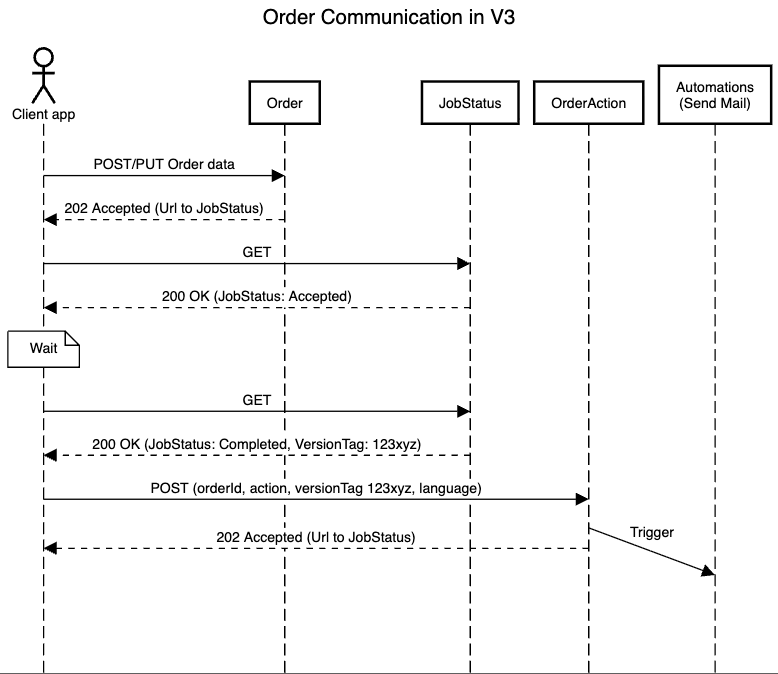
Creation and updating orders are asynchronous operations. This means you must wait until Engage has finished processing the order and has returned a `versionTag` before using that to trigger an action. As processing time may vary, it is critical to have a retry mechanism in place that polls the status until a valid `versionTag` is returned.
The endpoint used is:
```http theme={null}
POST /api/v3/orders/{orderId}/action
```
You'll use the `orderId` of the order in question. The payload looks like this:
```json theme={null}
{
"action": "ConfirmOrder",
"versionTag": "IXUA3ril8XnZJKUMSfP7dg==",
"language": "en-US",
"data": {
"custom": "data",
"list": [
"data1",
"data2"
]
}
}
```
You determine what is in this string.
Sent back when Engage has successfully processed the latest update to your order.
Whatever else you need the automation trigger to have access to.
## **Response codes**
If the action has been accepted, you'll get a *HTTP 202 Request has been accepted* response. Otherwise, one of these:
* *400: Bad request*
* *404: Order not found or VersionTag did not match the order*
* *422: Order has no contact*
## **Data flow**
Here you can see the data flow for orders and order communication:
 ## **Order actions**
These are the individual order actions a merchant can use to trigger events in Engage:
When the order is confirmed.
The merchant verifies and confirms that the order is legit and confirms that payment has been received. This assures the customer that their transaction was successful.
When the order is shipped.
The order has been handed over to a delivery service and is on its way to the customer. The customer will usually receive a tracking number to get updates on their package.
When the order has been delivered.
The package has been successfully delivered to the customer’s address. The merchant might want to alert the customer about the delivery.
When the order has been cancelled.
The order has been canceled either by the customer or the merchant due to some reason (such as out of stock or payment issues).
When the order has been completed.
The order has been shipped/picked up, receipt is confirmed. Or the client has paid for a digital product, and their purchase is available for download.
When a custom order action is requested.
## **Order actions**
These are the individual order actions a merchant can use to trigger events in Engage:
When the order is confirmed.
The merchant verifies and confirms that the order is legit and confirms that payment has been received. This assures the customer that their transaction was successful.
When the order is shipped.
The order has been handed over to a delivery service and is on its way to the customer. The customer will usually receive a tracking number to get updates on their package.
When the order has been delivered.
The package has been successfully delivered to the customer’s address. The merchant might want to alert the customer about the delivery.
When the order has been cancelled.
The order has been canceled either by the customer or the merchant due to some reason (such as out of stock or payment issues).
When the order has been completed.
The order has been shipped/picked up, receipt is confirmed. Or the client has paid for a digital product, and their purchase is available for download.
When a custom order action is requested.