

/orders API stores all orders sent to the endpoint, which expands allows orders to be used in segmentation and in other areas of Customer Engagement.
Other functions available are the ability to fetch all orders for a contact, or to delete an order through the API. This means that clients can correct order data errors by themselves and can update an order’s data throughout its entire life-cycle.
Orders vs Transactions
The order entity is similar to the transaction entity, but there are some vital differences. An order represents the goods and services being purchased (or returned) at the time of the actual order, whether online or in-store. This data can change and the order can be updated multiple times during its life-cycle. Apart from the status changes, there may also be changes to the actual goods and services in the order, meaning a retailer can add, update or remove order line items throughout the whole order life-cycle. A transaction on the other hand represents an actual exchange of goods or services between the retailer and the customer. A transaction, once registered, can never be changed, since there are other processes within Customer Engagement that depend on that transaction data. For example, the loyalty points being given for a purchase, which can result in bonus payouts or other benefits. An order may result in many transactions, depending on how the goods and services are delivered, and if any are returned. An order with multiple deliveries could result in multiple transactions. Orders and transaction also use different endpoints:- The endpoint used for registering orders is
/api/v3/orders - The endpoint used for registering transactions is
/api/v3/receipts
/action endpoint) whereas a transaction affects multiple Customer Engagement modules, such the loyalty, targeting and reporting.
Orders v3 API overview
The orders v3 API endpoints can be divided into two types, administration and action.- The administration part is for creating, reading and updating orders. All changes are processed and moved into segmentation (currently available in “Filter tool”). In this group are all orders endpoints apart from
/action.
- The action part is used when the client wants to trigger some action on an order that has been processed in Customer Engagement. For now, this basically means triggering automations, but there is a plan to add more functionality.
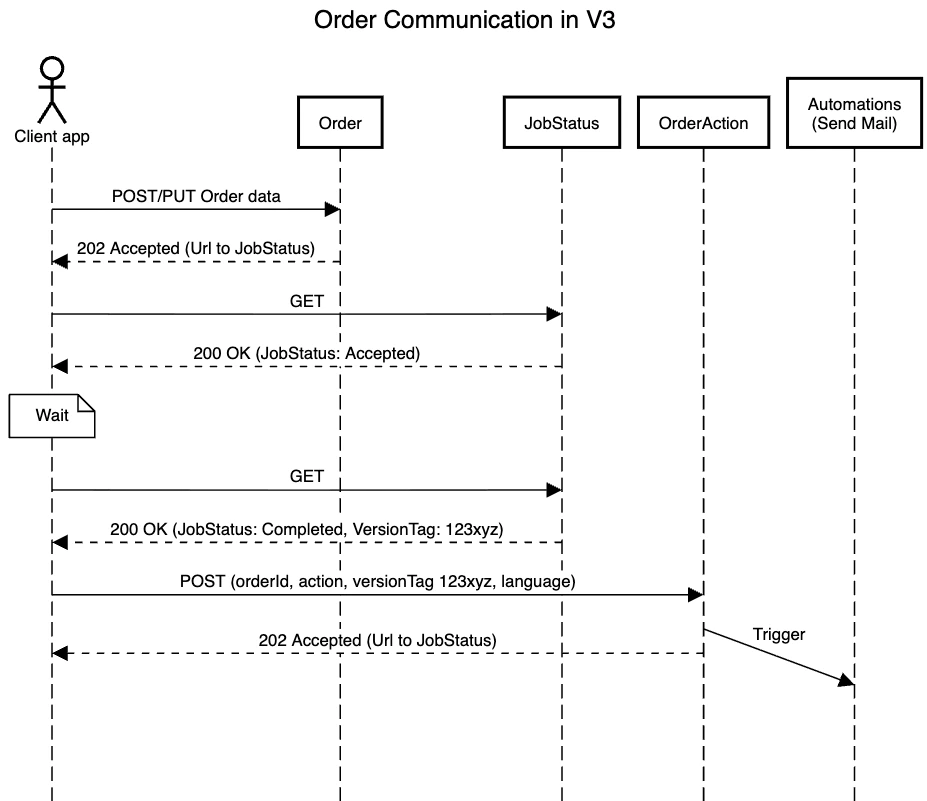
VersionTag when triggering actions. This VersionTag is returned when a change to an order has been processed. It is available either via the /jobstatus endpoint when creating or updating the order, or from /orders endpoint. Here you can see the data flow for orders and order communication:
The triggers available
Embedded order actions
When you change the status of an order or its delivery details via the API, you will receive a job ID in the response. This ID can then be used this to manually poll the system to see when the change you requested had actually been processed so that any subsequent actions, such as sending confirmation emails, can be triggered via the/action endpoint.
Embedded order actions provide a neater way of doing this. When you change the status of an order or its delivery details, you now have the option of sending your “instructions” about what is to be done after the change is processed as an order action parameter in the payload. This allows follow-up activities such as sending confirmation email to be triggered automatically with no polling needed.
Embedded order actions are an optional complement to the /action endpoint for triggering automations, but are not a replacement.
The orders flow
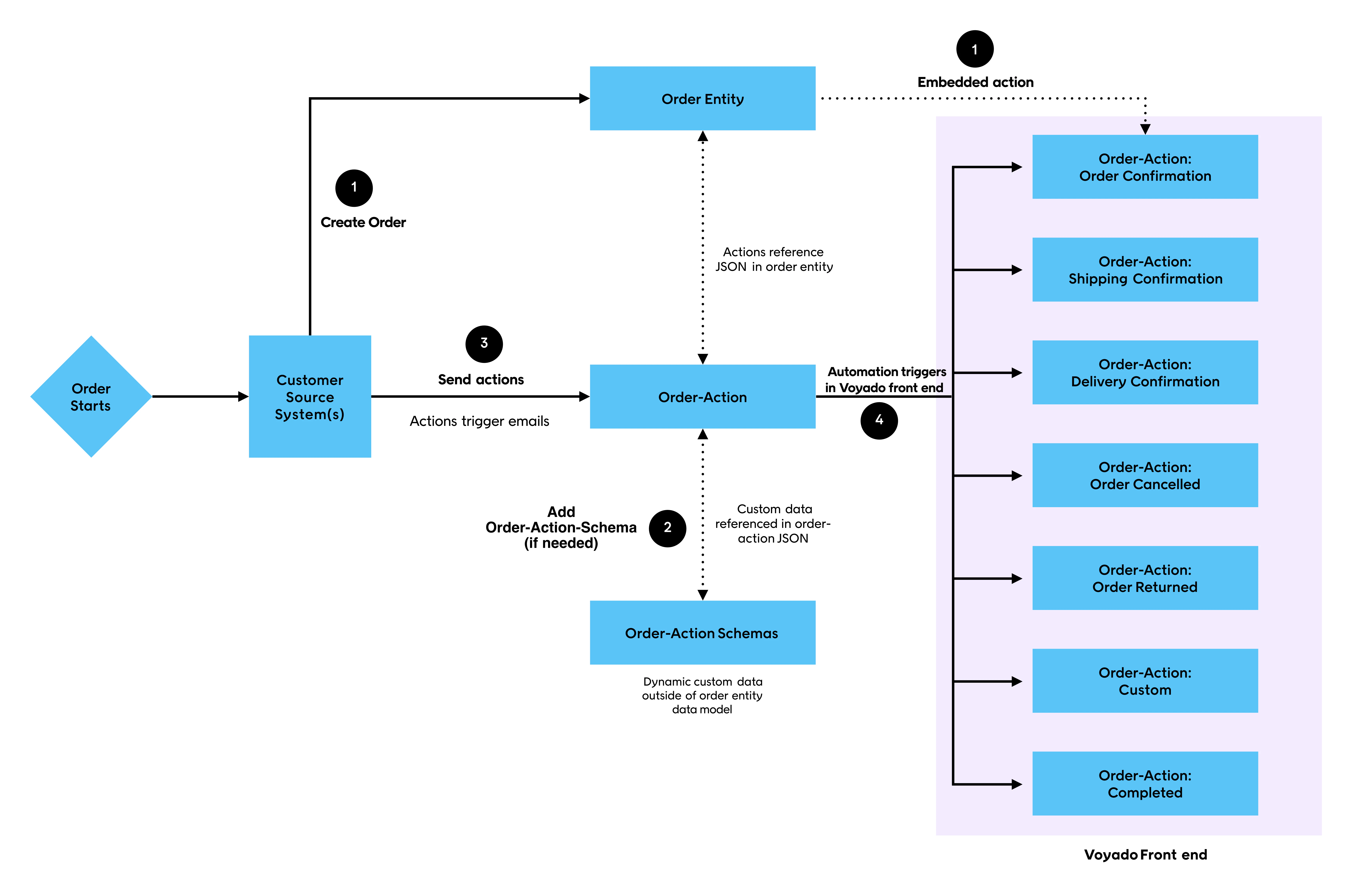
The full orders flow
Viewing a contact’s orders
A contact’s orders can be viewed in a tab on their contact card. The orders registered may be either purchases, returns or mixed (which includes both purchase line items and return line items).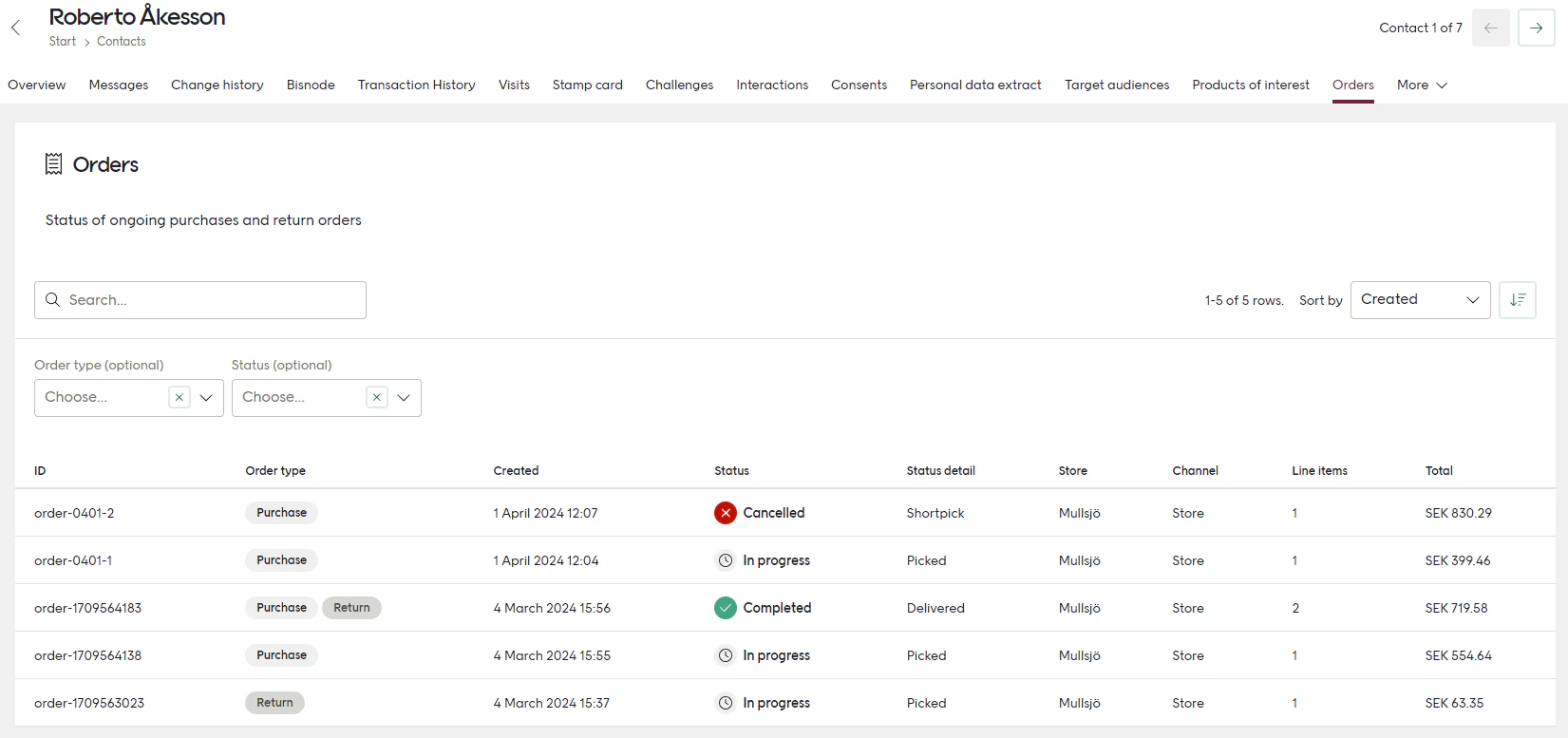
Orders on the contact card
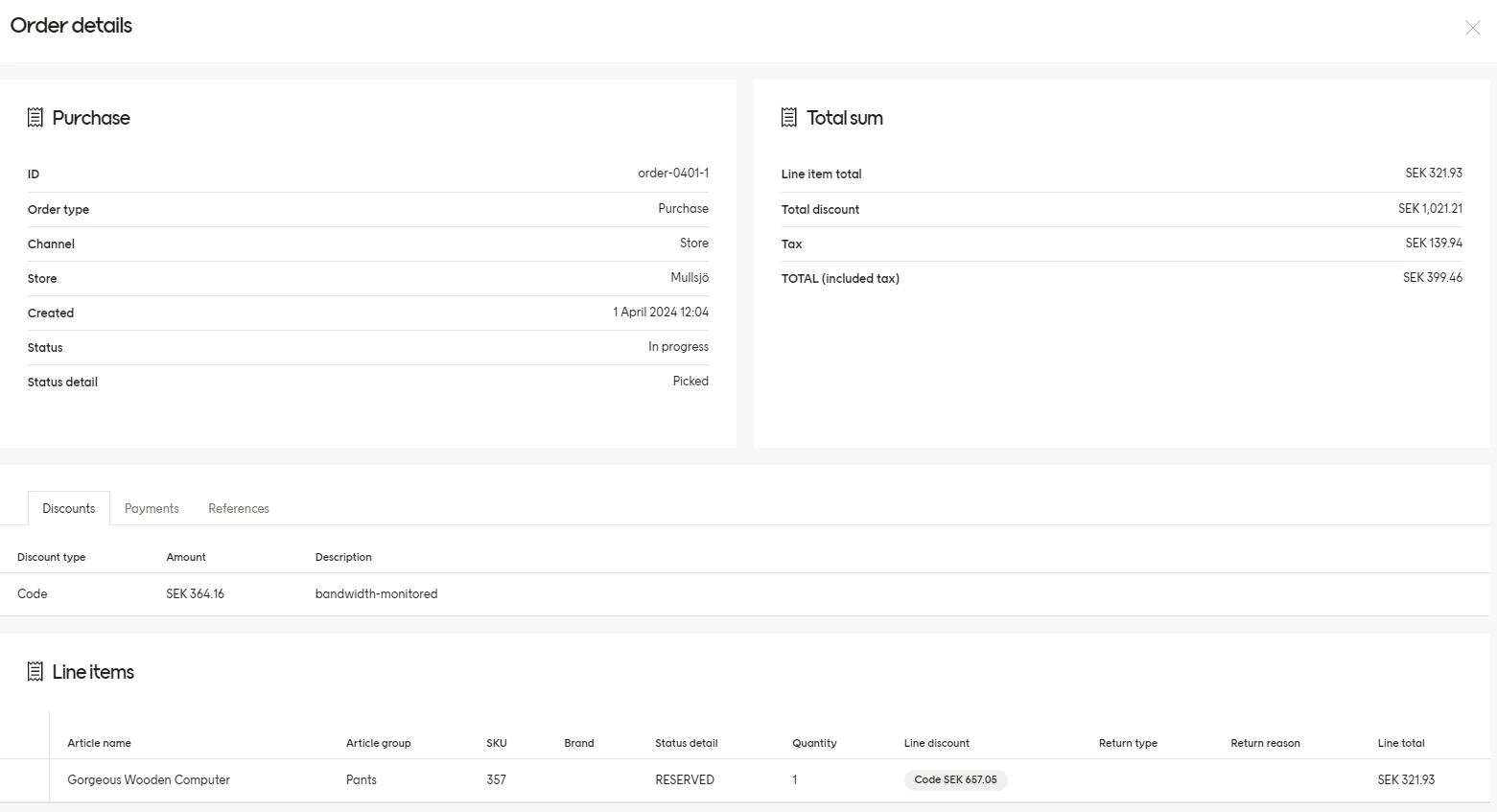
Order details
Segmentation of orders
Order segmentation allows retailers to see if a contact has an ongoing order and the items on that order. This is useful to be able to exclude contacts from targeting campaigns or to target contacts who have an ongoing order. To take advantage of order segmentation, the retailer’s instance of Customer Engagement must have migrated to the star schema, which is an enhanced version of the targeting engine. Once migrated to the star schema, it is important that the retailer’s article registry in Customer Engagement is updated with the article information that the retailer wants to segment on (category, brand, color, size, etc).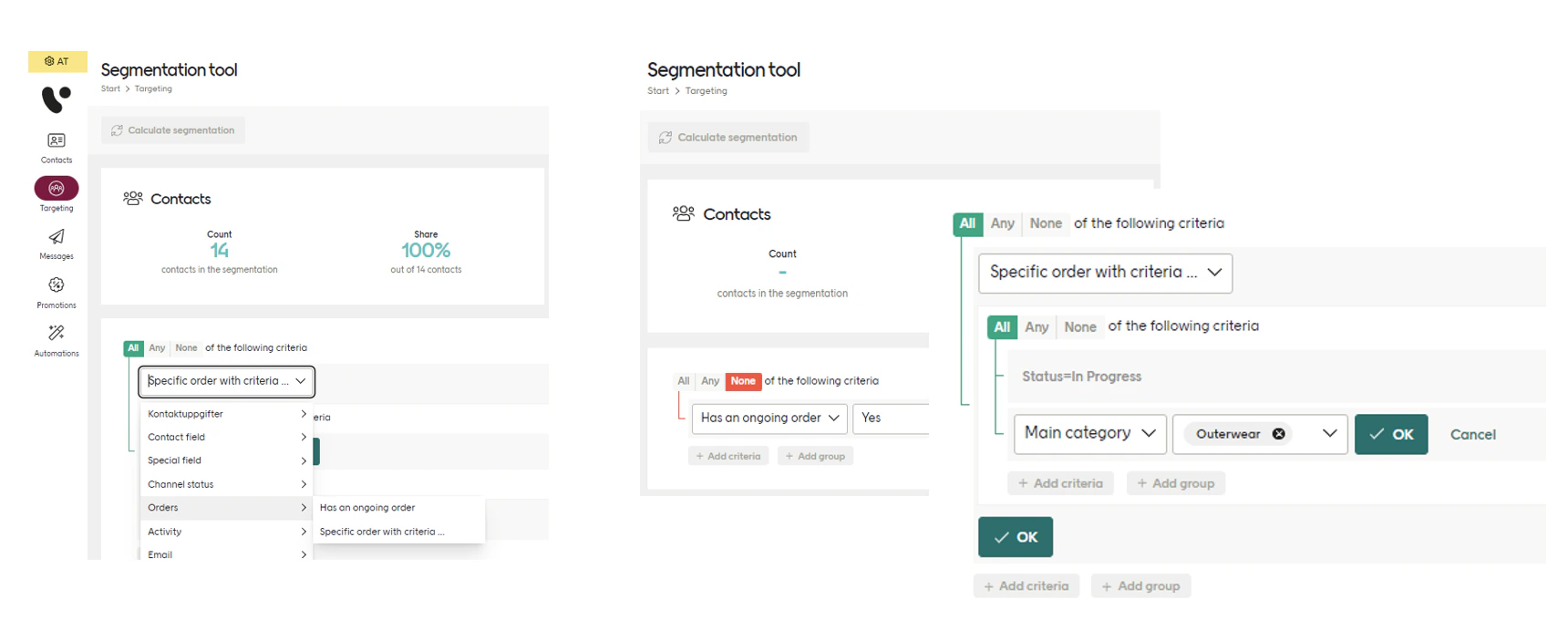
Segmentation of orders
Integration log
Generally, errors are raised and returned via the API endpoints synchronously when the data format is incorrect. Format validation errors may be retrieved via the/api/v3/orders/jobs endpoint.
Errors may also be detected when the order data is validated and processed. These errors are reported to the integration log under the type “Orders”. Below is a list of the most important errors to look out for: