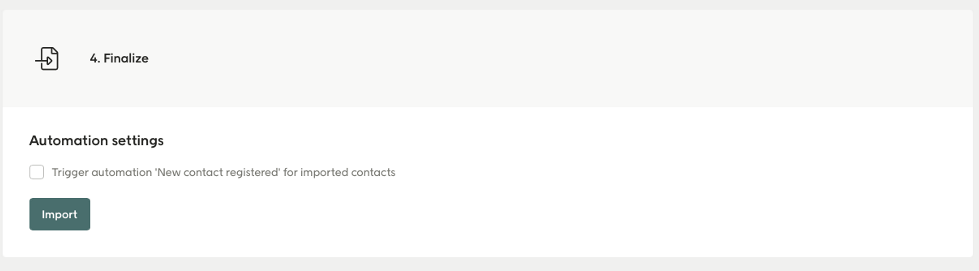
Read more about the manual import of contact data in this guide.
You can download examples as CSV and Excel on the example files page.
Splitting your contacts CSV file
If a contacts CSV file has more than 50 000 records, you should split it into several files before importing them into Customer Engagement. One way to do this is using a python script like this one:- Make sure that Python 3 is installed on your computer.
- Create a folder containing an empty text file called “script.py”.
- Copy the code above and paste it into that file.
- Place the CSV you want to split into the same folder.
- Open Command Prompt on PC (terminal in Mac) and navigate to this folder.
- Run the script using the command “python script.py”.
- Now a folder should be created containing your files.
- Take these files and import them into Customer Engagement.
Importing your files
In the Customer Engagement frontend go to Contacts then Import/Export and then Import.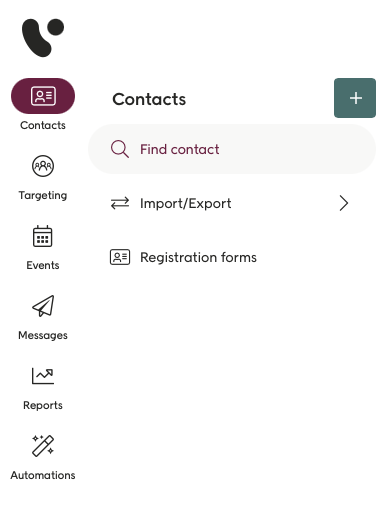
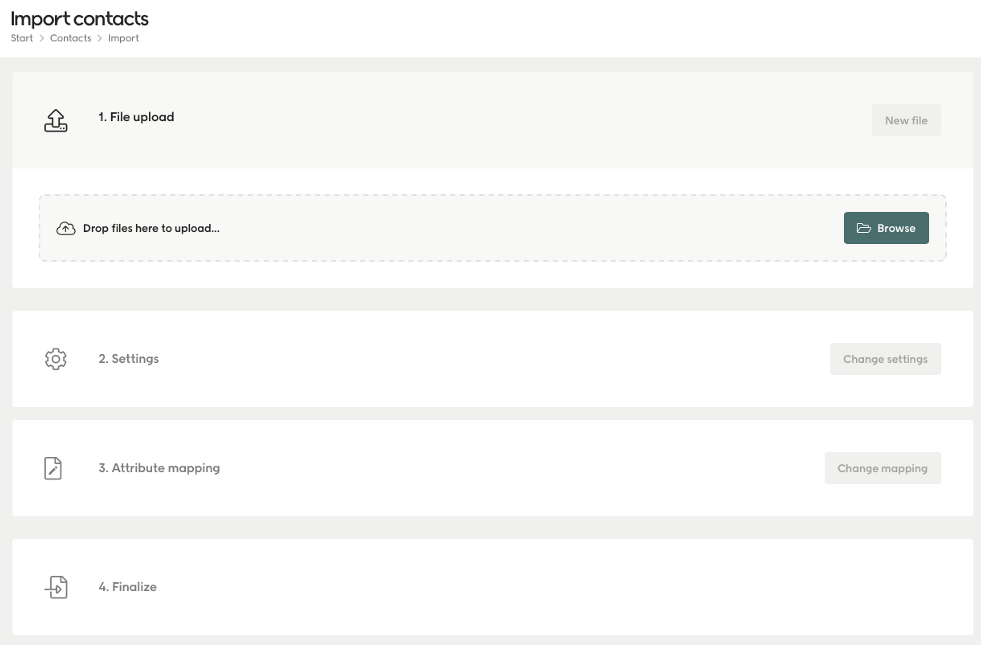
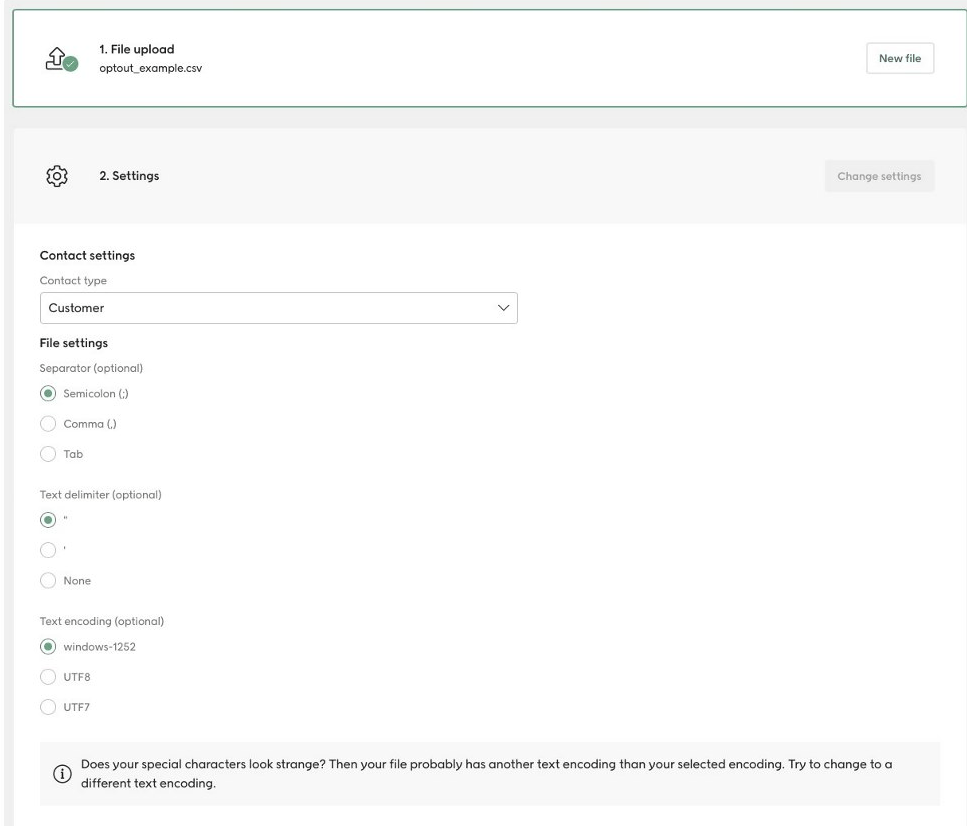
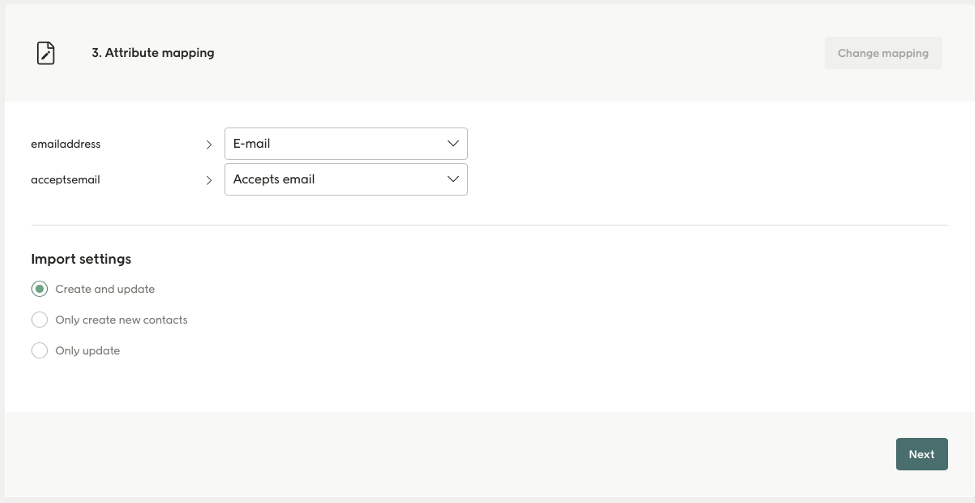
- Create and update: If you’re importing new contacts or a mix or old and new.
- Only create new contacts: If you’re sure you’re just creating new contacts.
- Only Update: If you’re sure you’re only updating existing contacts.